
TL;DR

Get audio and creator gear delivered free with Prime
- Fast, free delivery on millions of items
- Prime Video, Amazon Music and more included
- Member-only deals all year
Affinity Photo is a professional, layer-based Photoshop alternative with RAW development, masks, live filters, retouching tools, HDR merging, focus stacking, and local file ownership. It cannot replace Lightroom’s catalog or every Adobe automation and cloud feature, so photographers leaving Adobe should test real projects, preserve original PSD files, and arrange separate photo-library management before canceling.
Leaving Adobe is less like changing cameras and more like rebuilding your camera bag while you are still on assignment. Affinity Photo may handle the careful retouching, layered composites, masks, and print files beautifully, yet your Lightroom catalog, Photoshop actions, cloud links, and client PSDs can remain tied to Adobe. The editor is only one piece of the working system.
This guide shows you what Affinity Photo can replace, where the gaps sit, and how you can test the change without putting years of photographs at risk. You will see how RAW processing, PSD compatibility, automation, printing, and archive management behave in practical situations. You will also get a nine-step migration plan built around real files rather than feature-list optimism.
I approach software changes the same way I approach new lighting gear: use it on a controlled shoot before trusting it at a wedding, commercial set, or gallery deadline. You do not need to convert 80,000 images on day one. You need three representative projects, dependable backups, and a clear answer to one question: can this setup carry your actual photographic work from import to delivery?
Treat Affinity Photo as a Photoshop replacement, not as a complete replacement for Photoshop, Lightroom, Bridge, Camera Raw, and Creative Cloud together.
Pair Affinity Photo with a separate RAW processor or catalog when you regularly cull, keyword, synchronize, and retrieve photographs from large shoots.
Test at least one real RAW shoot, one complex PSD, and one known print file before changing your Adobe access.
Keep original PSD, DNG, RAW, catalog, preset, and metadata files; create interchange copies instead of bulk-converting the archive.
Rebuild and verify macros, color settings, export recipes, plugin workflows, and client handoffs before relying on Affinity Photo for deadline work.
Affinity Photo for Photographers Leaving Adobe
Affinity Photo can replace much of Photoshop’s careful, layer-based editing—but it does not replace the entire Adobe Photography Plan. The safe move is to rebuild the workflow around real projects, preserved originals, and separate library management.
Retouching, masks, composites, live filters, layered masters, and print preparation transfer well.
Importing, ratings, keywords, collections, retrieval, and large-shoot synchronization need another tool.
Run representative RAW, PSD, and print projects while Adobe access and original files remain intact.
01 / What transfers
A serious editing room, without the Adobe lease
Affinity Photo is strongest when the photograph is already selected and ready for detailed work. Its familiar layer logic covers a broad professional toolkit, while local-first documents keep storage and backup decisions in your hands.
RAW processing
Adjust exposure, white balance, color, lens corrections, noise, detail, and tone. RAW layers can remain editable inside layered documents.
Layered control
Use adjustment layers, masks, blending modes, live filters, frequency separation, liquify tools, and separate pixel layers.
Computational merges
Merge HDR brackets, stitch panoramas, stack focus slices, and blend exposures for landscape, architecture, and studio work.
Macros and batches
Record repeatable operations and run batch jobs. Expect less depth than Adobe actions, scripts, droplets, and extensions.
Professional files
Prepare layered masters, print files, export variants, and high-bit-depth documents for demanding photographic workflows.
Local-first storage
Keep files on storage you control. A perpetual licence means continued access to the purchased generation, not free major upgrades forever.
02 / The dividing line
Photoshop replacement or Adobe replacement?
Single-image craftsmanship transfers far more completely than library-wide organization. The editor handles the photograph on screen; a catalog remembers where every photograph lives and how it relates to the archive.
| Workflow need | Affinity Photo | Adobe workflow | Migration verdict |
|---|---|---|---|
| Layered retouching | ✓Layers, masks, live filters, blending, and frequency separation | Photoshop layers, masks, smart filters, and a broader plugin ecosystem | ✓Strong replacement |
| RAW development | ✓Develop Persona for individual files and layered RAW work | Camera Raw plus Lightroom synchronization across large shoots | ~Capable, but different |
| Photo library | ✕No full catalog for import, ratings, keywords, collections, and search | Lightroom Classic catalog, collections, metadata, retrieval, and syncing | ✕Add a separate manager |
| Automation | ✓Macros and batch jobs | Actions, scripts, droplets, extensions, and connected services | ~Rebuild and verify |
| AI editing | ~Selections and computational tools with fewer generative features | Firefly, Generative Fill, Neural Filters, and connected AI services | ✕Expect feature gaps |
| PSD exchange | ✓Opens and exports many common PSD structures | Native support for smart objects, Adobe adjustments, and linked assets | ~Test complex masters |
| File ownership | ✓Local-first files and native .afphoto documents | Local files plus optional or connected cloud services | ✓Greater local control |
03 / Practical fit
Where Affinity feels fast—and where it slows down
These relative workflow-fit scores visualize the practical pattern, not a laboratory benchmark: focused editing is the sweet spot; high-volume library work is the pressure point.
You are rebuilding a system, not swapping one application.
Leaving Adobe is less like changing cameras and more like rebuilding your camera bag while still on assignment. Affinity Photo may cover the careful retouching and print master, but the catalog, presets, cloud links, actions, plugins, and client handoffs still need a place.
Relative workflow fit / 100 — based on capability alignment described in the migration guide.
04 / Build the new chain
A complete non-Adobe workflow needs more than an editor
Pair Affinity Photo with a dedicated RAW processor or digital asset manager when your work depends on rapid culling, synchronized adjustments, metadata, and retrieval across a large archive.
Copy cards, verify files, and create backups.
Rate, keyword, search, group, and retrieve.
Synchronize RAW color and tonal corrections.
Retouch and composite in Affinity Photo.
Export, print, archive, and hand off.
A wedding-sized shoot exposes the difference. Affinity Photo can perfect the hero portraits, but opening files individually is not a substitute for synchronized culling, metadata, and batch development. Consider Capture One, DxO PhotoLab, ON1 Photo RAW, darktable, RawTherapee, or another catalog and RAW solution.
05 / The three-project trial
Test the work that can actually hurt
Feature lists cannot reveal broken masks, changed color, missing fonts, unsupported plugins, or a slowed delivery routine. A controlled trial with real files can.
One real RAW shoot
Import, cull, develop, synchronize, retouch, export, and retrieve it. Check current camera and lens support before committing.
One complex PSD
Inspect smart objects, smart filters, type, linked assets, vectors, blend modes, masks, and Adobe-specific adjustments.
One known print file
Verify document profile, soft proofing, dimensions, sharpening, printer settings, exported color, and the physical result.
06 / Reversible migration
Move your archive in nine safe steps
The goal is not to convert everything on day one. It is to prove that a new toolchain can carry representative work from import to delivery while every original remains recoverable.
Inventory the Adobe system
List catalogs, cloud files, presets, actions, plugins, fonts, linked assets, export recipes, and client requirements.
Back up before changing
Create verified copies of RAW files, catalogs, previews, metadata, layered masters, presets, and configuration files.
Choose three projects
Select one RAW shoot, one demanding PSD, and one trusted print job that represent your normal risks.
Design the library layer
Choose how photographs will be imported, rated, keyworded, searched, synchronized, backed up, and retrieved.
Test PSD compatibility
Open copies, inspect every important layer, export a round-trip PSD, and compare it with the untouched original.
Rebuild automation
Translate essential actions into macros or batch jobs, then verify naming, dimensions, color, metadata, and output.
Calibrate output
Match color settings, working profiles, soft proofs, export recipes, sharpening, and printer behavior.
Run a live parallel job
Complete a low-risk assignment in the new workflow while Adobe remains available as a fallback.
Cancel only after proof
Leave Adobe when the new chain handles import, editing, delivery, retrieval, backup, and client exchange reliably.
Can this setup carry your actual work from import to delivery?
If the answer is yes across representative files, deadlines, printing, archive retrieval, and client exchange, Affinity Photo can become the editing core of a durable non-Adobe system. If the answer is only yes for retouching, keep building the surrounding workflow before canceling.
RAW: camera support and batch workflow verified
PSD: critical client files inspected and preserved
Library: catalog, metadata, and retrieval solved
Output: color, export, and printing validated
Safety: originals and backups remain untouched
Know Exactly What Affinity Photo Can Replace
Affinity Photo for Photographers Leaving Adobe works best as a replacement for Photoshop’s hands-on image editing, not as a replacement for every application in the Adobe Photography Plan. You gain layers, masks, RAW development, retouching, compositing, and print preparation, but you do not gain a Lightroom-style catalog or the full Creative Cloud system.
Affinity Photo is one of the strongest Photoshop alternatives for photographers who want professional editing without a recurring Adobe subscription. Affinity has traditionally sold Version 2 through a perpetual licence: you keep using the purchased generation, while a later major generation may require a separate purchase. According to Affinity’s Version 2 information, the application runs on macOS, Windows, and iPadOS, with a Universal Licence covering Photo, Designer, and Publisher on supported platforms [1].
The editing toolkit reaches well beyond basic adjustments. You can develop RAW files, build adjustment and live-filter layers, paint masks, blend exposures, separate frequencies for retouching, merge HDR brackets, stitch panoramas, stack focus slices, run batch jobs, record macros, and edit in 16-bit or 32-bit workflows. Version 2, released in 2022, also brought non-destructive RAW layers, live masks, compound masks, and luminosity-range controls [1].
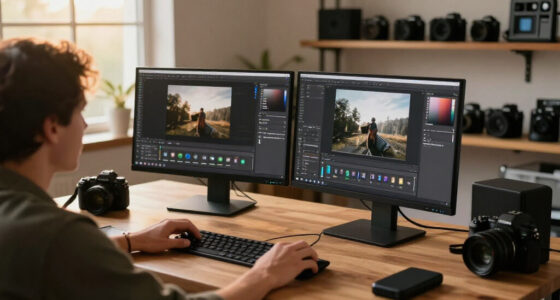
Imagine a portrait in which a bright window cuts across your subject’s cheek. You can develop the RAW exposure, place a masked Curves adjustment over the window light, remove flyaway hairs on a separate pixel layer, and add a subtle live high-pass filter for sharpening. That familiar layered rhythm makes Affinity Photo feel close to Photoshop, even when the buttons and shortcuts sit in different places.
You gain ownership, but you give up integration. The editing tools travel well; the surrounding Adobe ecosystem does not.
RAW photo editor for photographers
As an affiliate, we earn on qualifying purchases.
As an affiliate, we earn on qualifying purchases.
See the Adobe Features You Keep—and the Ones You Lose
Affinity Photo for Photographers Leaving Adobe preserves most core pixel-editing work but leaves gaps in cataloging, cloud syncing, generative tools, and Adobe-specific automation. The practical dividing line is simple: single-image craftsmanship transfers well, while library-wide organization and tightly connected services require other software or a new routine.
| Workflow need | Affinity Photo | Adobe workflow |
|---|---|---|
| Layered retouching | Layers, masks, live filters, blending modes, frequency separation | Photoshop layers, masks, smart filters, and broader plugin support |
| RAW editing | Develop Persona for individual files and layered RAW work | Camera Raw plus Lightroom synchronization across large shoots |
| Photo library | No full catalog | Lightroom importing, ratings, keywords, collections, search, and syncing |
| Automation | Macros and batch jobs | Actions, scripts, droplets, extensions, and Creative Cloud connections |
| AI editing | Selections and computational tools, with fewer generative features | Firefly, Generative Fill, Neural Filters, and connected AI services |
| File ownership | Local-first files and native .afphoto documents | Local files plus optional or connected cloud services |
A 40-image product shoot illustrates the difference. You can polish the hero bottle in Affinity Photo, clean dust from the glass, rebuild a label edge, and prepare a layered print master. If the client later asks you to apply matching exposure and white-balance changes across 1,200 cataloged frames, Lightroom remains faster because it was built for synchronized, library-wide work.
This does not make Affinity Photo weak. It means the applications solve different problems. The editor handles the image on your screen; the catalog remembers where every image lives, what rating you gave it, which virtual copy the client approved, and which collection contains the final selects. For a small archive of dated folders and descriptive filenames, local browsing may be enough. For a decade of weddings, wildlife trips, or editorial assignments, you will probably need separate digital asset management.
As an affiliate, we earn on qualifying purchases.
Build a RAW Workflow That Will Not Slow Down a Big Shoot
Affinity Photo is capable at RAW development, but it is better suited to deliberate work on selected photographs than rapid synchronization across thousands of frames. If Lightroom currently handles your importing, culling, metadata, batch corrections, and collections, pair Affinity Photo with a dedicated RAW processor or catalog rather than forcing one application to do everything.
The Develop Persona gives you controls for exposure, white balance, color, lens corrections, detail, noise reduction, and tonal shaping. A RAW layer can remain editable inside a layered document, which is useful when a composite needs another half-stop of highlight recovery after you have built the masks. That flexibility feels particularly good on landscapes, architecture, still life, and polished portraits.
Now take a 2,400-frame wedding. You need to reject blinks, group bursts, correct three different lighting conditions, apply metadata, compare near-identical first-kiss frames, and export several hundred photographs. Opening images individually in the Develop Persona turns that organized chaos into a slow afternoon. Capture One, DxO PhotoLab, ON1 Photo RAW, darktable, RawTherapee, or another RAW application can handle the broad pass, while Affinity Photo handles the 12 images that need detailed skin work, object removal, or compositing.
- Use the RAW application for ingestion, culling, global corrections, metadata, and large synchronized batches.
- Send selected files to Affinity Photo as 16-bit TIFF, PSD, or another format that fits your editing and collaboration needs.
- Keep the original RAW files beside backed-up metadata or XMP sidecars when your catalog supports them.
- Check new camera support before a paid assignment, especially when the body or lens has just reached stores.
Lightroom presets do not transfer directly because Affinity uses a different RAW-processing system. You can recreate a muted-film look with curves, color adjustments, LUTs, or macros, but a preset is a recipe tied to its original kitchen. Match the visible result on five varied photographs—skin, foliage, tungsten light, blue sky, and deep shadow—before trusting the new recipe across a full gallery.
As an affiliate, we earn on qualifying purchases.
Test Your PSD Files Before a Client Finds the Problems
Affinity Photo for Photographers Leaving Adobe can open and export PSD files, but complex Photoshop documents do not always survive with every feature editable. Basic layers, masks, text, blending, and common adjustments often transfer well; smart objects, advanced typography, linked assets, scripts, and Adobe-only effects create the greatest risk.
Use a real client document for your test, not a tidy three-layer sample. Open a beauty retouch containing dodge-and-burn groups, a frequency-separation stack, linked packaging artwork, editable type, and a smart filter. Inspect the file at 100% magnification, toggle every group, compare blend modes, check text wrapping, and export the expected delivery formats.
Round-tripping deserves special care. Affinity may interpret a Photoshop feature well enough to display it, yet exporting and reopening that PSD in Photoshop can produce a different structure. A studio that expects fully editable smart objects may reject a file that looks perfect as a flattened TIFF. Visible similarity and structural compatibility are not the same thing.
- Preserve every original PSD in its existing location and backup set.
- Create an interchange copy before opening or exporting from Affinity Photo.
- Test smart objects, smart filters, adjustment layers, text, vectors, linked files, and plugin-generated layers.
- Ask collaborators whether they need editable PSD structure or only a finished TIFF, JPEG, PNG, or PDF.
Photoshop actions and JavaScript automation generally do not transfer directly. Affinity macros can repeat many editing steps, and batch jobs can resize, convert, or process groups of files, but you must rebuild the routine. If your current action creates 14 named layers, runs a third-party plugin, saves two color-space variants, and uploads through an Adobe extension, test every link. One missing step can hide inside an apparently successful export.
photo editing software for Lightroom users
As an affiliate, we earn on qualifying purchases.
As an affiliate, we earn on qualifying purchases.
Move Your Archive in Nine Safe, Reversible Steps
A safe Adobe migration happens project by project, with your original files, catalogs, metadata, presets, and layered masters left intact. The goal is not to convert your whole archive in a weekend. It is to prove that your new workflow survives real editing, delivery, backup, and retrieval before you remove access to familiar tools.
- Inventory what you use. List Lightroom catalogs, Photoshop actions, plugins, fonts, presets, cloud folders, publishing services, and export recipes.
- Select three test projects. Choose one recent RAW shoot, one layered client job, and one print file with a known color result.
- Check camera and lens support. Open files from every body you still use, including compressed or unusual RAW variants.
- Choose library software. Decide where ratings, keywords, collections, searches, and metadata will live when Lightroom is gone.
- Write metadata where useful. Export supported information to files or XMP sidecars, while remembering that Adobe rendering instructions may not appear in another RAW engine.
- Back up before conversion. Keep catalogs, originals, DNG files, presets, PSD masters, fonts, and exported finals in at least two verified locations.
- Rebuild daily shortcuts. Configure keyboard commands, macros, export presets, file naming, working color spaces, and soft-proof settings.
- Run both systems through real jobs. Complete several assignments from ingestion to client delivery and record every snag.
- Cancel only after retrieval testing. Open an old job, locate its approved image, reproduce its output, and confirm that collaborators can use the result.
A useful trial might include a 600-frame family session, a 20-layer commercial portrait, and an A3 exhibition print. Time the work honestly. If culling adds two hours, a plugin fails, or a printer profile produces muddy reds, you have found a workflow problem while Adobe is still available—not at 11 p.m. before delivery.
Do not bulk-convert every PSD to .afphoto. Newer Affinity files may not open in older application versions, and conversion can discard Adobe-specific structure. Keep the archive’s organized chaos frozen in its native formats, then create new Affinity documents when an old photograph returns for active work.
Get Predictable Prints and Honest Color From Day One
Affinity Photo supports professional print preparation through ICC color management, soft proofing, CMYK and LAB documents, high-bit-depth editing, and controlled exports. Reliable output still depends on a calibrated display, the correct printer-paper profile, and disciplined color settings; changing software does not repair a weak color chain.
Start with one photograph you know intimately. A good test file contains pale skin, saturated fabric, neutral gray, shadow detail, and a smooth sky. On a calibrated monitor, soft-proof it with the ICC profile for the exact printer, ink, and paper combination, then compare the rendering intents and enable gamut warnings where useful.
For example, a photograph of a bride holding deep red flowers may look luminous in a wide-gamut RGB workspace. On matte cotton paper, the petals can close into a dark crimson patch and the dress can lose the cool detail visible on screen. A small proof lets you lift the flower shadows and adjust saturation with a proof-specific adjustment layer, without damaging the master edit.
- Confirm the working color space used by your document and the profile embedded during export.
- Ask the lab whether it expects RGB, CMYK, TIFF, JPEG, PDF, or another format.
- Use the exact paper ICC profile, not a generic profile from the same printer family.
- Order a test print before sending a 20-image exhibition set or a large client album.
Affinity’s export panels and soft-proof setup differ from Adobe’s, so rebuild them slowly. Save a known-good master, export an Adobe RGB or sRGB delivery copy as required, and inspect both the embedded profile and pixel dimensions. The first proof may feel like a bittersweet expense, but it buys something valuable: confidence grounded in ink and paper, not a glowing screen.
Decide Whether the Subscription Tradeoff Fits Your Work
Affinity Photo is a strong fit when you mainly need Photoshop-style editing, control your own production workflow, prefer local storage, and do not depend on Adobe’s catalog, cloud, AI, or automation systems. It is a weaker fit for high-volume Lightroom users and Adobe-centered teams whose speed comes from connected services.
The local-first model has a practical appeal. You can open a photograph without importing it into a proprietary catalog, save an .afphoto master on your own storage, and design a backup plan around folders you control. For a freelance architectural photographer delivering 25 carefully finished images each month, that can be a clean match.
A sports photographer sending 900 captioned images from multiple events faces a different calculation. Fast ingestion, metadata templates, synchronized corrections, searchable archives, and agency compatibility may outweigh the appeal of changing editors. The strongest Photoshop alternatives are not automatically the strongest Lightroom or newsroom alternatives.
Canva acquired Serif, Affinity’s developer, in March 2024. According to Canva’s public announcement, the companies pledged continued investment and said perpetual licences would remain available [2]. That pledge does not define every future cloud service, account requirement, bundle, or major upgrade, so check current official licence and platform information when you are ready to move.
Affinity also introduced a six-month trial in 2024 to give switchers a long evaluation window [1], though trial terms can change. Use whatever current trial is offered as a working season, not a quick tour. Edit rain-soaked event files, noisy high-ISO portraits, layered composites, and a print order. Your own deadlines reveal the fit more clearly than a feature checklist.
Frequently Asked Questions
Can Affinity Photo completely replace Photoshop?
Affinity Photo can replace Photoshop for many retouching, masking, compositing, panorama, HDR, focus-stacking, and print-preparation jobs. It does not reproduce every smart-object behavior, Adobe AI feature, action, script, extension, or plugin workflow, so test your complex working files before committing.
Can Affinity Photo replace Lightroom for a large photo library?
Affinity Photo cannot replace Lightroom’s full catalog by itself. It lacks an equivalent system for comprehensive importing, ratings, keywords, collections, virtual copies, searching, and cross-device syncing, so a photographer managing tens of thousands of images usually needs another RAW processor or asset manager.
Will my Lightroom edits appear when I open the RAW file in Affinity Photo?
Lightroom edits usually will not appear as editable Affinity instructions because Adobe’s catalog and RAW engine interpret those adjustments. Export a rendered 16-bit TIFF or PSD when you need to preserve the visible result, and retain the original RAW file plus Lightroom metadata for archive access.
Can I transfer Photoshop actions and Lightroom presets?
Photoshop actions and Lightroom presets do not transfer directly into Affinity’s different editing systems. You can rebuild some actions as macros and recreate a preset’s appearance with curves, color adjustments, LUTs, or RAW settings, but compare the result across several lighting conditions and skin tones.
Should I cancel Adobe as soon as Affinity Photo is installed?
Keep both systems during a staged migration. Complete several representative jobs, confirm camera support, verify old archive access, test client PSD requirements, and produce a known print before canceling. A short overlap is safer than discovering a missing plugin or catalog dependency during a midnight delivery deadline.
Conclusion
Do not judge the move by whether Affinity Photo can open one RAW file. Judge it by whether you can complete a whole assignment: find the photographs, develop them, retouch the selects, produce accurate color, deliver the required files, and retrieve the work six months later. If that chain holds across three representative projects, you have evidence that the change fits your craft.
Keep your Adobe archive untouched, build the missing catalog and automation pieces, and let both systems overlap until the new routine feels ordinary. The goal is not a dramatic escape. It is a quiet morning when you open the next photograph, hear the storage drive spin, and know exactly where your work lives.
Halloween Picks
halloween
As an affiliate, we earn on qualifying purchases.