
TL;DR

Get audio and creator gear delivered free with Prime
- Fast, free delivery on millions of items
- Prime Video, Amazon Music and more included
- Member-only deals all year
Editing on an iPad now covers serious photo work, layered image adjustments, multitrack video, audio cleanup, external-drive transfers, and color-managed delivery. It can replace a laptop for focused shoots and fast turnarounds, but demanding plugin workflows, large archives, and complex file handoffs still favor a desktop.
Your camera bag can now hold an editing room. An iPad, a small card reader, and a portable drive can take photographs from a muddy football sideline to a client gallery before the stadium lights cool, with no laptop balanced awkwardly on your knees.
I have watched editing on an iPad change from a useful way to rate images into a credible working setup for RAW photographs, layered composites, multitrack video, and finished exports. The difference is not one dazzling feature. It is the way faster chips, better apps, USB-C accessories, Pencil control, and cloud services now join into a chain that rarely breaks.
This guide shows you how far mobile workflows have come, which jobs feel natural on a tablet, and where a desktop still saves time. You will also get a practical field workflow, storage guidance, and an honest comparison based on the pressures photographers actually face: fading batteries, crowded trains, slow hotel Wi-Fi, and clients waiting for files.
Test the full path from card import to archive before trusting an iPad on a paid assignment.
Keep originals in at least two verified locations and do not count an editing library as your only backup.
Reserve roughly 15 to 20 percent of internal storage for imports, previews, caches, and exports.
Use the Pencil for masks and detailed corrections, then add a keyboard when repeated commands slow you down.
Choose the iPad for focused, portable work and keep a desktop available for plugins, huge archives, automation, and demanding print production.
Editing on an iPad: How Far Mobile Workflows Have Come
An iPad can now carry photographs and video from camera import to color-managed delivery. It is a credible editing room for focused shoots and fast turnarounds—provided storage, backups, and handoffs are designed before the assignment begins.
Import, back up, select, edit, verify, and archive.
Keep verified copies on separate devices or services.
Leave room for previews, caches, imports, and exports.
A workflow that rarely breaks
No single feature turned the iPad into a workstation. The change came from faster processors, professional apps, precise Pencil input, USB-C accessories, external displays, and cloud handoff working as one dependable system.
RAW development
Import camera files, synchronize corrections, manage local masks, and export client-ready images without returning to a desk.
Layered adjustments
Photoshop for iPad supports serious retouching and layered work, while Pencil control makes detailed masking feel direct.
Multitrack timelines
Final Cut Pro for iPad and LumaFusion bring touch trimming, titles, audio controls, color tools, and portable timelines.
Cleanup and mixing
Mobile tools can trim dialogue, reduce unwanted noise, adjust levels, and prepare polished audio for rapid delivery.
External-drive transfer
USB-C readers and portable solid-state drives make direct camera-card copying and separate field backups practical.
Color-aware export
High-resolution displays, managed app workflows, and cloud galleries support review, approval, and final handoff.
Field knife or full workbench?
The iPad excels when the assignment is focused, portable, and touch-friendly. A laptop or desktop remains stronger when many tools, files, drives, and applications must stay visible at once.
| Editing need | iPad workflow | Laptop or desktop workflow | Best fit |
|---|---|---|---|
| Field selection | Instant wake, fast gestures, and a small footprint. | Deeper batch tools and more visible metadata. | ✓iPad |
| Local adjustments | Direct Pencil masking on the image. | More shortcuts, plugins, and automation options. | ✓iPad |
| Large archives | Convenient access through cloud albums. | Better folder control, catalog depth, and storage scale. | ✗Desktop |
| Video timelines | Fluid touch trimming and a compact setup. | More effects, codecs, plugins, and monitor choices. | ~Project-dependent |
| Client review | Natural shared viewing with no laptop lid between people. | Faster production of many delivery variants. | ✓iPad |
| Complex handoff | Simple cloud links and focused exports. | Stronger for nested folders, unusual formats, and automation. | ✗Desktop |
Six steps that survive a real shoot
A fixed order prevents missing files and storage dead ends when batteries are fading, Wi-Fi is slow, and a client is waiting.
Import the card
Create a clearly named project and copy every file before formatting anything.
Make copy two
Duplicate originals to a portable drive or a verified cloud destination.
Rate first
Reject missed focus and weak expressions before spending time on adjustments.
Edit a reference
Balance one representative frame, then synchronize related photographs.
Inspect the set
Check faces at full size and compare crops, color, and neighboring frames.
Export and verify
Open delivered files, confirm dimensions, and retain the project until receipt.
An editing library is not your only backup. Leave camera cards untouched until every original exists in at least two verified locations.
Protect the working margin
Free space is operational headroom. Imports, previews, caches, temporary renders, and exports all compete for it during the busiest part of a job.
Internal storage target
Keep roughly 15 to 20 percent free before a demanding assignment.
Pre-shoot reliability check
Test the entire path before trusting it on paid work.
- 1Confirm the card reader recognizes every camera card type.
- 2Copy test files to the iPad and an external drive.
- 3Open RAW, video, and audio formats inside the chosen apps.
- 4Export the exact dimensions and color profile the client needs.
- 5Verify cloud handoff on a connection slower than studio Wi-Fi.
Untouched source
Controlled import
Verified backup
Checked delivery
Retained originals
Choose for the pressure, not the category
The iPad is already a real workstation. It becomes a laptop replacement only when the job fits its software, storage, and handoff model.
Focused and portable
- Fast selects and same-day previews from the field
- Pencil-led masking, retouching, dodging, and burning
- Compact multitrack edits and social delivery
- Client review in a natural shared-screen setting
- Quiet work on trains, planes, sidelines, and café tables
Deep and expansive
- Huge archives and thousands of files across several cameras
- Specialist plugins, automation, and unusual file types
- Complex folder trees and multi-version delivery packages
- Demanding print production and specialist output utilities
- Long sessions across several applications and displays
“Your camera bag can now hold an editing room—but dependable mobile work begins with a complete, tested chain.”
Key insightWhy an iPad Can Now Finish Jobs It Once Only Started
Editing on an iPad can now carry many projects from camera import to final delivery because modern models combine fast M-series processors, high-resolution displays, USB-C connectivity, and professional editing software. That complete chain matters more than any single benchmark because paid work depends on moving files reliably, not merely opening them.
A decade ago, tablet editing often meant importing a JPEG, adding a preset, and sending a small copy to social media. Today, apps such as Adobe Lightroom, Photoshop for iPad, Final Cut Pro for iPad, and LumaFusion handle work that once demanded a desk, a mouse, and a noisy computer fan.
Apple announced Final Cut Pro for iPad in May 2023, a useful marker in this shift [1]. Its arrival did not make the tablet identical to a Mac, but it showed that mobile software could support timelines, color adjustments, titles, audio controls, and direct camera recording within a touch-led workspace.
Imagine photographing a restaurant opening at 6 p.m. You import 300 RAW files during a quiet gap, flag 35 selects with your left hand, shape warm skin tones with the Pencil, and export 12 press images before dessert service. The screen glows like a small light table, while the tablet stays silent beside clinking glasses.
The catch is software depth. Some desktop plugins, advanced automation tools, print utilities, and specialist catalog features remain absent or reduced. The iPad has become a real editing workstation, but it works best when your project fits the tools that exist rather than depending on a desktop-only extension.
As an affiliate, we earn on qualifying purchases.
See Exactly Where the iPad Beats a Laptop—and Where It Does Not
Editing on an iPad beats a laptop when you need speed, touch control, and a small working footprint, while a laptop remains stronger for huge archives, unusual file types, extensive plugins, and long sessions across several applications. Your better choice comes from the job in front of you, not the device category.
| Editing need | iPad advantage | Laptop advantage |
|---|---|---|
| Field selection | Fast touch gestures and instant wake | More flexible batch tools |
| Local adjustments | Direct Pencil control on the image | More shortcuts and plugin choices |
| Large archives | Portable access through cloud albums | Better folder control and larger internal storage |
| Video timelines | Fluid touch trimming and compact setup | More effects, codecs, and monitor options |
| Client delivery | Easy review while sitting beside a client | Faster handling of many export versions |
For a portrait session, I enjoy handing the client an iPad and letting the photographs fill the screen. You can sit together on a sofa, mark favorites, and discuss a crop with the image between you. That feels warmer than placing a laptop lid between two faces like a small office wall.
A laptop pulls ahead when the assignment produces thousands of files. A three-day conference may involve several cameras, nested folders, duplicate filenames, metadata templates, and multiple delivery sizes. Desktop file tools expose more of that machinery at once, which reduces the risk of putting Tuesday’s keynote in Monday’s folder.
Think of the iPad as a sharp field knife and the laptop as a full workbench. The knife is faster when the task is focused and you are standing in wet grass. The workbench wins when twenty tools, three drives, and a sprawling catalog must stay visible together.
As an affiliate, we earn on qualifying purchases.
Build a Six-Step Mobile Workflow That Survives a Real Shoot
Editing on an iPad becomes dependable when you create a fixed path for importing, backing up, selecting, editing, exporting, and archiving. Repeating the same order prevents missing files and dead-end storage problems, especially when you are tired after a shoot and working from a café table or train seat.
- Import from the card. Connect a USB-C reader, create a clearly named project, and copy the files before formatting anything.
- Make a second copy. Duplicate the originals to an external solid-state drive or verified cloud destination.
- Rate before editing. Reject blinks and missed focus, then give stars or flags only to photographs worth finishing.
- Edit one reference image. Set white balance, exposure, contrast, and color on a representative frame before synchronizing related photographs.
- Check the final set. Inspect faces at full size, compare neighboring frames, and watch for inconsistent crops or color.
- Export and verify. Open several delivered files, confirm their dimensions, and keep the project until the client receives the gallery.
On a small wedding job, you might return to the hotel with 1,200 photographs and a request for ten previews. Copy the cards to both the iPad and a portable drive, select the ten photographs, edit them, and send the previews. Leave the cards untouched until every original exists in at least two places.
Never treat an imported library as a backup. A file exists safely only when you have at least two verified copies on separate storage devices or services.
This order also keeps creative choices cleaner. If you start polishing the first attractive frame before finishing your selection, you may spend ten minutes on a photograph that loses to the next frame, where the expression is softer and the hand position looks natural.
Your workflow should remain boring in the best way. When rain taps against a café window and your battery shows 18 percent, a familiar routine acts like runway lights, guiding the files home without guesswork.
professional iPad photo editing apps
As an affiliate, we earn on qualifying purchases.
As an affiliate, we earn on qualifying purchases.
Use Touch and Pencil Controls for Faster, More Natural Edits
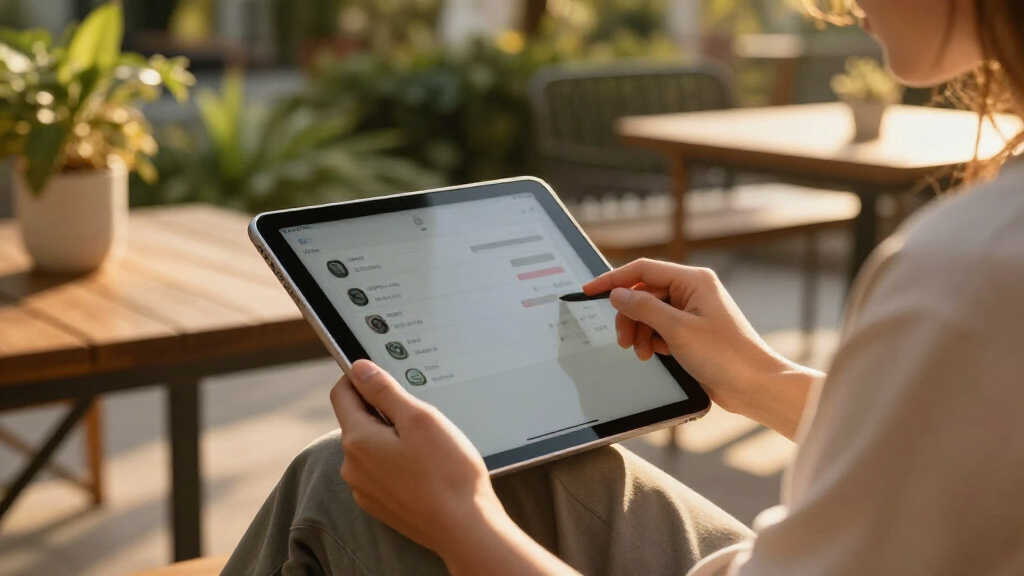
Touch and Apple Pencil input make the iPad especially good at masking, dodging, burning, retouching, and timeline trimming. You work directly on the photograph or clip, which can feel quicker and more natural than steering a pointer from several inches away on a separate trackpad.
When I brighten a face beneath the brim of a hat, the Pencil lets me trace the cheek and jaw with the same hand movement I would use on a paper print. The mask appears beneath the tip, soft and translucent, almost like brushing diluted ink across frosted glass.
That direct contact helps beginners understand local editing. A global exposure slider changes the whole frame, while a painted mask changes only the chosen area. You can see the difference immediately: the face lifts out of shadow while the pale afternoon sky keeps its blue texture.
Touch also changes video editing. Dragging the end of a clip to remove 12 shaky frames feels like sliding a bookmark along a strip of film. A keyboard remains faster for repeated cuts and text entry, but Pencil and finger gestures make rough assembly surprisingly fluid when you are sitting in a vehicle or working beside the camera.
Precision has limits. Your finger hides a small part of the screen, Pencil gestures vary between apps, and long retouching sessions can tire your wrist if the tablet lies flat. Raise the iPad on a stand, keep your forearm supported, and use keyboard shortcuts for repetitive commands while saving the Pencil for edits that benefit from a human hand.
As an affiliate, we earn on qualifying purchases.
Keep Color, Storage, and Exports From Ruining Good Work
A reliable iPad edit needs controlled screen brightness, enough free storage, and a verified export recipe. The photograph can look beautiful in your hands yet arrive too dark, overly warm, or badly compressed if the display, color settings, and output dimensions change without you noticing.
Start with the room around you. Editing beside a bright window often pushes you toward darker files because the screen looks washed out, while a dark hotel room can make ordinary contrast appear dramatic. Use steady, moderate light and keep display brightness consistent rather than letting it drift from dim to dazzling.
Storage disappears faster than many photographers expect. A set of 1,000 RAW files at 45 MB each occupies about 45 GB before previews, edits, caches, or exported copies enter the project. Video consumes space even faster, and an almost-full device may slow imports or interrupt an export at exactly the wrong moment.
- Keep at least 15 to 20 percent of internal storage free during a large project.
- Use a fast USB-C drive for originals and completed exports.
- Name project folders with the date, client, and job rather than vague labels such as Final.
- Export a small test batch before rendering hundreds of files.
For example, a magazine may ask for JPEG files in the sRGB color space, 3,000 pixels on the long edge. Export two images first, reopen them outside the editing app, and inspect smooth skies, fine hair, and saturated red fabric. A quiet gradient should not turn into blocky steps, and a crimson dress should not become electric orange.
Adobe’s Lightroom documentation describes cloud syncing across supported devices [2], which is handy for moving between an iPad and desktop. Still, cloud sync is not magic storage. Confirm that uploads have completed before wiping local files, especially on hotel Wi-Fi that sputters like an old radio.
Know Which Jobs You Can Confidently Finish on the iPad
Editing on an iPad is ready for event previews, travel photography, portrait selections, social video, interviews, and many complete photo deliveries. It becomes less comfortable when a job depends on desktop-only plugins, intricate file automation, advanced print control, or a giant archive spread across several drives.
A travel photographer can import sunrise photographs on the train, correct perspective, balance the orange glow against cool blue shadows, and deliver an illustrated story before reaching the next city. That is where portability changes the craft: the edit happens while the memory of the wet pavement and sharp morning wind still feels fresh.
News and event work also suit the tablet. If an organizer needs five photographs within 30 minutes, instant wake, fast card import, saved presets, and cellular delivery remove several small delays. Those minutes accumulate, and the finished files can reach an editor while the audience is still leaving the room.
High-volume commercial work presents a different shape. A campaign may need tethered capture, precise naming rules, layered files shared with a retoucher, client comments, several color versions, and final print preparation. You can complete pieces of that chain on an iPad, but moving repeatedly between apps can feel like carrying ingredients between six small kitchens.
Your best test is a rehearsal with a personal project. Take 100 RAW files, make two backups, edit ten, export web and print versions, then move the project into your archive. Any friction you meet during that calm trial will become louder when a client is waiting, so fix the workflow before using it on paid work.
Sources: [1] Apple’s May 2023 announcement of Final Cut Pro for iPad. [2] Adobe’s Lightroom guidance on syncing photographs and edits across supported devices.
Frequently Asked Questions
Can an iPad fully replace a laptop for professional photo editing?
An iPad can replace a laptop for many focused photography jobs, including RAW selection, color correction, masking, retouching, and gallery delivery. A laptop still handles large archives, specialist plugins, automated naming, and advanced printing more comfortably, so your answer depends on the work you deliver.
How much iPad storage do I need for RAW photography?
Estimate storage from your camera’s actual file size and your normal shoot volume. If each RAW file uses 45 MB, a 1,000-frame assignment begins at about 45 GB, and you still need room for previews, caches, apps, and exports.
External drives reduce pressure, but internal space still matters during imports and processing. Keep roughly 15 to 20 percent free before starting a large job.
Can I connect camera cards and external drives directly to an iPad?
Many current iPads accept compatible USB-C card readers, hubs, and external drives. Some accessories draw more power than the iPad can comfortably provide, so a powered hub helps when you connect a drive, card reader, and display together.
Test your exact combination before leaving for a shoot. A cable that works with one drive may become unreliable when several devices share the same hub.
Is an iPad screen accurate enough for serious color editing?
A recent iPad display is capable of strong color and tonal work, but the room and screen settings still affect your decisions. Edit under steady light, avoid automatic brightness changes during a session, and check demanding print work on a trusted calibrated display.
For web delivery, export a few test files in sRGB and inspect them in another app or device. Bright reds, dark suits, and smooth blue skies expose color and compression problems quickly.
Which editing apps support a complete iPad workflow?
Lightroom and Photoshop for iPad cover many photography workflows, while Final Cut Pro for iPad, LumaFusion, and iMovie serve different levels of video work. The right app is the one that supports your camera files, adjustment tools, export settings, and handoff method.
Run a complete sample assignment before committing. Opening a RAW file proves very little if the app cannot export the size, color space, metadata, or layered format your client requests.
Can I edit video professionally on an iPad?
Yes, you can complete interviews, short documentaries, event recaps, social clips, and many multitrack projects on an iPad. Modern apps provide timeline editing, titles, audio adjustment, color tools, and high-resolution export.
Long projects with many camera angles, unusual codecs, complex effects, or large shared storage systems still favor a desktop. For a three-minute event film, the tablet can feel swift; for a feature-length production, its smaller workspace and app limits become harder to ignore.
Conclusion
The iPad no longer needs an apology as an editing tool. Give it a clear file routine, dependable backup, calibrated judgment, and apps that match your work, and it can finish assignments that once kept you tied to a desk. Its real gift is not raw speed; it is the ability to shorten the distance between seeing a photograph and delivering it.
Before your next important shoot, run one complete personal project through the tablet. When you can move a memory card from camera to backup to finished gallery without hesitation, your mobile workflow is ready—and that thin sheet of glass becomes a quiet darkroom glowing in your hands.
Fall Picks
fall essentials
As an affiliate, we earn on qualifying purchases.