
TL;DR

Get audio and creator gear delivered free with Prime
- Fast, free delivery on millions of items
- Prime Video, Amazon Music and more included
- Member-only deals all year
Tethered shooting connects your camera to a computer or tablet so photographs appear immediately on a large screen. Capture One Pro leads for professional studio production, Lightroom Classic wins for Adobe-centric workflows, free manufacturer utilities are the best starting point for occasional use, and specialist tools cover automation, multi-camera, and focus-stacking niches. Always verify your exact camera model’s supported features before committing software to a paid shoot.
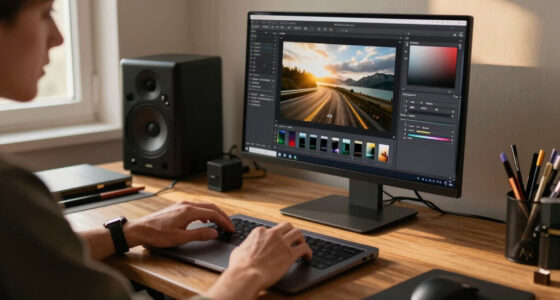
Picture a commercial shoot where an art director spots a stray hair across the subject’s collar three frames in — on a 27-inch monitor, not a three-inch camera LCD. That is the kind of catch that pays for tethering software in a single session.
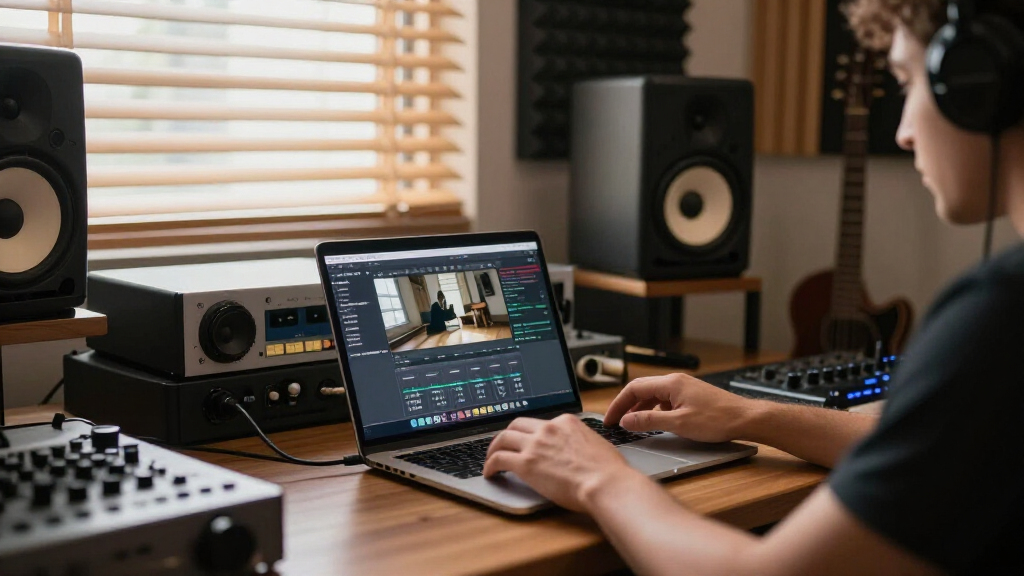
Tethered shooting connects a camera to a computer or tablet so photographs appear immediately on a bigger screen. But depending on the software and camera you use, you can also adjust exposure, trigger the shutter, run live view, apply presets, rename files, and share images with clients while you shoot. The tool you pick changes how your whole set runs.
Here’s the honest comparison — grounded in how these tools behave on real sets, not spec sheets. We’ll cover the major options, the criteria that actually matter, and how to avoid the classic tethering disasters.
Camera compatibility varies by exact model, firmware, OS, and connection type — verify the software maker’s current support list for your specific body before…
Capture One Pro’s Session workflow makes it the professional studio standard; Lightroom Classic wins when images must flow straight into an existing Adobe cata…
Free manufacturer utilities (Canon EOS Utility, Nikon NX Tether, Sony Imaging Edge, Fujifilm tools) are the best starting point and often sufficient for occasi…
A wired USB connection remains faster and more dependable than Wi-Fi for critical work — use quality data-rated cables, restraints, and continuous camera power.
Preset application on capture in Capture One and Lightroom is nondestructive — the RAW data stays intact while clients see a near-final look live.
Tethered Shooting Software Compared
Pick the wrong tethering tool and your whole set slows to a crawl. Pick the right one and an art director spots a stray hair across the collar on a 27-inch monitor — three frames in. This is the honest comparison: how each tool behaves on real sets, not on spec sheets.
Camera support varies by exact model, firmware, OS, connection type, and software release — verify before every paid shoot.
The Main Contenders, and Who Each One Suits
Tethered shooting software falls into four camps. Professional capture applications lead studio production; Adobe ties capture into its ecosystem; free manufacturer utilities cover brand-specific control; specialists handle automation, multi-camera, and focus-stacking niches.
Capture One Pro
The studio and commercial standard. Sessions keep captures, selects, output, and even trashed frames in one self-contained job folder. Fast capture, overlays, industry-leading color tools, and on-set sharing make it the choice of fashion, product, and advertising studios.
Lightroom Classic
Captures land directly in your permanent catalog with metadata and Develop presets applied automatically. Fewer specialist capture tools and variable live view — but if your post-production life already lives in Adobe, the frictionless handoff wins.
Canon · Nikon · Sony · Fujifilm
EOS Utility, NX Tether, Imaging Edge Desktop Remote, and Fujifilm’s tools are better than many photographers expect — solid brand-specific control, live view, remote settings, and dependable support, at no cost. Often sufficient for occasional tethering.
Smart Shooter · digiCamControl · Helicon Remote
Smart Shooter covers multi-camera and barcode-driven volume work. digiCamControl is the free open-source Windows option with automation. Helicon Remote handles macro focus bracketing and stacking integration for specialized uses.
Nine Tools, Side by Side
The full field at a glance — best use case, core strengths, and the limitations that matter when the client is on set.
| Software | Best For | Main Strengths | Main Limitations |
|---|---|---|---|
| Capture One Pro Paid | Professional studio / commercial | Fast capture, Sessions, color tools, overlays, on-set sharing | Subscription or license; camera support must be checked carefully |
| Lightroom Classic Paid | Adobe workflows | Capture into catalog, automatic presets, familiar editing | Fewer specialist capture tools; live view varies |
| Canon EOS Utility Free | Canon owners | Free, broad control, live view, remote settings | Canon-only; minimal production workflow |
| Nikon NX Tether Free | Nikon owners | Free, direct control, RAW transfer | Nikon-only; limited collaboration features |
| Sony Imaging Edge Free | Sony owners | Free, live view, detailed control | Sony-only; basic asset management |
| Fujifilm Tethering Tools Free | Fujifilm X / GFX owners | Manufacturer support, strong with high-res GFX | Features differ by camera, app, and OS |
| Smart Shooter Paid | Volume / automated capture | Multi-camera, scripting, barcode naming | Specialized interface; paid |
| digiCamControl Free | Budget Windows users | Free, open source, automation, time-lapse | Windows-focused; less polished |
| Helicon Remote Paid | Macro / focus stacking | Focus bracketing, stacking integration | Niche purpose, not full studio management |
Why Camera Support Decides Everything Before Features
The trap is partial support: a program may transfer photos happily but offer no live view, no autofocus control, or no white-balance adjustment for your body — limits set by the camera maker, not the software. A new Sony body usually works in Imaging Edge from day one; third-party apps can need weeks or months to catch up.
Identify
Confirm your exact camera model, firmware version, and connection type before anything else.
Check
Read the software maker’s current compatibility list — “supported” doesn’t guarantee every function works.
Test
Rehearse with your actual kit — camera, cable, computer, OS — before relying on it for a paid shoot.
Harden
Use quality data-rated USB cables, restraints, and continuous camera power for critical sessions.
Capture One vs. Lightroom Classic
Neither is universally better. On a two-day e-commerce shoot with a digitech, Capture One wins — Sessions, overlays, and client review are built for it. On a one-hour portrait session flowing into an existing retouching pipeline, Lightroom’s catalog integration wins.
Capture One Pro
- Self-contained Sessions keep every frame findable — even ones you almost deleted
- Capture overlays: drop a dieline over live frames so the bottle fits every time
- Industry-leading color tools for color-critical work
- Built-in on-set sharing and client-present review
- Nondestructive preset application on capture — RAW stays intact
Lightroom Classic
- Captures land directly in your permanent catalog
- Metadata and Develop presets applied automatically on import
- Seamless Photoshop round-trips and cloud sync
- Familiar editing environment, no manual bridging
- Ideal for smaller studio sessions and portrait work
Connection Reliability: Wired vs. Wireless
A direct USB connection remains faster and more dependable than Wi-Fi for critical work. Wireless tethering helps when mobility matters — but latency, congestion, battery drain, and interrupted transfers remain real concerns. Relative performance on set:
Illustrative reliability comparison. Actual speed depends on USB capabilities, cable quality and length, RAW file size, storage speed, and background load from previews, cloud syncing, and antivirus scanning.
Five Rules Before Your Next Tethered Shoot
Verify compatibility first. Support varies by exact model, firmware, OS, and connection type — check the maker’s current list for your specific body before committing software to a paid shoot.
Match the tool to the job. Capture One’s Sessions are the studio standard; Lightroom Classic wins when images must flow straight into an existing Adobe catalog.
Start free. Canon EOS Utility, Nikon NX Tether, Sony Imaging Edge, and Fujifilm tools are the best starting point — and often sufficient for occasional use.
Stay wired for critical work. USB beats Wi-Fi for speed and dependability — use data-rated cables, restraints, and continuous camera power.
Presets are safe. Capture-time preset application in Capture One and Lightroom is nondestructive — the RAW data stays intact while clients see a near-final look live.
The Main Contenders at a Glance — and Who Each One Suits
Tethered shooting software falls into four camps: professional capture applications, Adobe’s ecosystem, free manufacturer utilities, and specialist tools. Capture One Pro is the professional standard for studio and commercial work, with its Session workflow, fast capture, overlays, and color tools. Lightroom Classic ties capture directly into an existing catalog and applies Develop presets automatically.
The free stuff is better than many photographers expect. Canon EOS Utility, Nikon NX Tether, Sony Imaging Edge Desktop Remote, and Fujifilm’s tethering tools all provide solid brand-specific control — live view, remote settings, dependable manufacturer support — at no cost. Then there are the specialists: Smart Shooter for multi-camera and barcode-driven volume work, digiCamControl as the free open-source Windows option, and Helicon Remote for macro focus stacking.
| Software | Best for | Main strengths | Main limitations |
|---|---|---|---|
| Capture One Pro | Professional studio/commercial | Fast capture, Sessions, color tools, overlays, on-set sharing | Paid; camera support must be checked carefully |
| Lightroom Classic | Adobe workflows | Capture into catalog, automatic presets, familiar editing | Fewer specialist capture tools; live view varies |
| Canon EOS Utility | Canon owners | Free, broad control, live view | Canon-only; minimal production workflow |
| Nikon NX Tether | Nikon owners | Free, direct control, RAW transfer | Nikon-only; limited collaboration features |
| Sony Imaging Edge Remote | Sony owners | Free, live view, detailed control | Sony-only; basic asset management |
| Smart Shooter | Volume/automated capture | Multi-camera, scripting, barcode naming | Specialized interface; paid |
| digiCamControl | Budget Windows users | Free, open source, automation, time-lapse | Windows-focused; less polished |
| Helicon Remote | Macro/focus stacking | Focus bracketing, stacking integration | Niche purpose, not full studio management |
tethered shooting software for cameras
As an affiliate, we earn on qualifying purchases.
As an affiliate, we earn on qualifying purchases.
Why Camera Compatibility Decides Everything Before Features Do
Compatibility is the first filter, full stop. Tethering support varies not just by brand but by exact camera model, firmware version, operating system, connection type, and software release. A common scenario: a photographer picks up a brand-new body, assumes it will tether fine in Capture One, and discovers on the day that file transfer works but live view doesn’t. On a product shoot where precise focus placement on a screen is essential, that’s a dealbreaker discovered an hour before the client arrives.
The trap is partial support. A program may happily import photographs but offer no live view, no autofocus control, no video, or no white-balance adjustment for your specific body. Think of it like a car with a full-size fuel tank but a blocked fuel line — the capacity is there, the pipeline isn’t. These limits are usually set by the camera, not the software — the maker decides which functions to expose over USB.
Manufacturer utilities are typically the safest bet for recently released cameras, because they ship alongside the bodies. For example, when a new mirrorless model launches, Sony’s Imaging Edge usually supports it from day one, while third-party applications can need weeks or months to catch up properly.
Before any paid shoot: check the software maker’s current compatibility list for your exact camera model and firmware. Support that lagged a launch has killed more tethering plans than any feature gap.
Test with your actual kit — camera, cable, computer, operating system — before you rely on it. A compatibility page saying “supported” doesn’t guarantee every function works on your configuration.
best tethering software for professional photography
As an affiliate, we earn on qualifying purchases.
As an affiliate, we earn on qualifying purchases.
Capture One vs. Lightroom Classic: The Comparison That Actually Matters
Capture One Pro is generally the stronger dedicated capture station. Its Sessions keep captures, selects, output files, and even trashed frames inside one self-contained job folder — invaluable when a client calls six months later asking for “the shot we almost deleted.” Add capture overlays (drop a layout template over live incoming frames for packaging shots, so a bottle sits perfectly inside the dieline every time), industry-leading color tools, and on-set sharing, and you can see why fashion, product, and advertising studios gravitate toward it.
Lightroom Classic plays a different game. Its tethering is less production-oriented — fewer capture tools, live-view support that varies by camera — but it captures directly into your permanent catalog and applies metadata and Develop presets automatically as files land. If your entire post-production life already lives in Adobe — catalog, Photoshop round-trips, cloud sync — that frictionless handoff beats a specialist tool you’d have to bridge manually.
Consider two typical jobs to see how the choice shakes out. On a two-day studio e-commerce shoot with a digitech running the station, Capture One wins: Sessions, overlays, and client review tools are built for exactly that. On a one-hour portrait session where images flow straight into an existing retouching pipeline, Lightroom’s simplicity and catalog integration win. Neither is universally better — camera compatibility, required controls, editing preferences, and team workflow decide it.
- Choose Capture One for commercial sets, client-present review, overlays, and color-critical work
- Choose Lightroom Classic for Adobe-based workflows and smaller studio sessions
- Choose a manufacturer utility when free and brand-specific control is enough
camera tethering utility for Nikon Canon Sony
As an affiliate, we earn on qualifying purchases.
As an affiliate, we earn on qualifying purchases.
The Hidden Performance Factors That Make or Break a Tethered Session
Speed and reliability in tethered shooting depend on far more than the software name. The chain includes your camera’s USB capabilities, cable quality and length, RAW file size, computer storage speed, and whether you’re transferring RAW and JPEG together. Then add the invisible killers: background cloud syncing and antivirus scanning suddenly deciding to inspect every 90MB RAW file mid-burst. Imagine a highway where a toll inspector stops and searches every truck in a convoy — that’s your antivirus scanning each frame of a 10fps sequence.
A direct USB connection is faster and more dependable than Wi-Fi, period. Wireless tethering is genuinely useful when mobility matters — location work, roaming events — but latency, network congestion, battery drain, and dropped transfers remain real risks. For critical studio work, wired is still the standard, and that isn’t likely to change soon.
Here’s the checklist experienced digitechs run before every tethered job:
- Short, high-quality data-rated USB cable — never a charge-only cable, and spares in the bag
- Cable restraints at both the camera and computer ends
- Continuous camera power — AC adapter or dummy battery for long sessions
- Fast local storage with plenty of free space, plus a backup destination
- Computer sleep disabled for the duration of the shoot
- Firmware, software, and OS combination tested together — and never updated the day before a job
That last point deserves emphasis. Updating firmware or software immediately before an important shoot is how photographers discover new compatibility bugs at the worst possible moment — the classic example being a firmware update that quietly breaks third-party tethering support the night before a client shoot. Test first, then freeze your setup.
USB tethering cable for DSLR cameras
As an affiliate, we earn on qualifying purchases.
As an affiliate, we earn on qualifying purchases.
What Remote Control and Live View Actually Get You on Set
Basic tethering only imports images after you press the shutter. Full remote shooting goes much further: live view, shutter triggering from the computer, aperture, shutter speed, ISO, and white-balance control, focus-point selection, manual focus stepping, exposure bracketing, interval shooting, focus stacking, and even video controls. Which of these you get is frequently limited by the camera rather than the software.
Where this shines is precision work. On a food shoot, for example, focus stepping from the laptop lets you place focus exactly on the condensation beads of a cold glass instead of a foreground garnish — a shot that would have been guesswork hunched over the camera. On architecture and reproduction jobs, remote control means you stop touching (and micro-shifting) the camera entirely, the way a copy-stand operator works: set it, frame it, then never disturb it again.
Live view on a big calibrated display also transforms review. You and your team can assess focus, motion blur, reflections, styling, and composition without squinting. Better tools add compare and overlay modes, composition guides, before-and-after views, remote browser or tablet viewing, client ratings, and restricted galleries showing only approved frames.
One caution from the research worth repeating: some cloud services share previews after capture without actually controlling the camera. Remote client review is increasingly valuable — but don’t confuse a sharing service with true tethering.
Editing While You Shoot: Presets Applied on Capture
Capture One and Lightroom Classic can both apply adjustments automatically as images arrive, which means the crew evaluates photographs with an approximate final look instead of a flat, uncorrected RAW preview. On a strobe-lit studio shoot, the difference is enormous — a preset with white balance, contrast, and a color profile makes every frame look intentional, not like a test.
Common automatic adjustments include white balance, crop, orientation, lens corrections, color profiles, contrast, sharpening, and creative presets. And here’s the reassuring part: these edits are nondestructive instructions, not baked-in changes. Think of it like a recipe card attached to the RAW file rather than ingredients already cooked — the underlying data stays untouched, so your retoucher still has full latitude later.
This is where the “Editing Software & Presets” world meets capture. If you’ve built a preset library that defines your look, tethering lets clients see that look live — which shortens approval cycles dramatically. A client who sees near-final images during the session signs off faster and flags styling issues while the set is still built, not after you’ve struck the lights and sent everyone home.
The tradeoff to know: processing overhead. Applying heavy adjustments to every incoming frame on a modest laptop can slow preview rendering during rapid capture — for instance, a preset stack with multiple AI-based masking adjustments may make previews lag several frames behind during a burst. Match your capture presets to your hardware.
File Organization and the Free-vs-Paid Question, Answered Honestly
Organization is where paid software earns its keep. Capture One’s Sessions shine on professional sets because everything for a job lives in one folder — imagine a school photography operation where hundreds of student sessions each get their own self-contained bundle of captures, selects, and outputs. Lightroom Classic is stronger when photographs must enter a long-term catalog immediately. Useful production features across tools include automatic naming, metadata templates, shot counters, destination folders, backup copies, ratings, color labels, and barcode-based naming for volume work (Smart Shooter, for instance, can scan a barcode on an ID badge and name every subsequent capture accordingly).
Now the money question: is tethering software free? It can be. Canon, Nikon, Sony, and Fujifilm all provide free tools for at least some compatible cameras. Advanced applications — Capture One, Lightroom Classic, Smart Shooter, Helicon Remote — require a license or subscription. And remember the hidden costs beyond software: cables, cable locks, powered hubs, adapters, external storage, backup software, and a calibrated monitor.
The honest advice for beginners: start with your camera maker’s utility. Learn what tethering does for your work before spending anything. Windows users with compatible gear should also try digiCamControl — free, open source, with automation and time-lapse features that punch above its price (which is nothing). Upgrade to paid tools when you genuinely need sophisticated organization, color control, automation, or client review — not before.
The best tethered shooting software is the one that reliably supports your exact camera, provides the control you need, and fits your post-production workflow. Reliability beats the longest feature list every single time.
Frequently Asked Questions
What is the best tethering software overall?
Capture One Pro is widely considered the strongest all-around choice for professional studio production thanks to Sessions, color tools, and on-set sharing. Lightroom Classic is more convenient for Adobe-centered workflows. For occasional use or maximum brand-specific control, your camera manufacturer’s free utility is the best starting point.
Can I tether my camera over Wi-Fi instead of USB?
Many recent cameras support wireless transfer or remote control, but wireless operation is normally slower and less predictable than USB — especially with large RAW files in crowded environments with congested networks. For critical studio work, a wired connection remains the professional standard.
Why does my camera keep disconnecting during tethered shooting?
Common culprits include a damaged or overly long cable, a charge-only USB cable, loose connectors, an unpowered hub, camera sleep settings, low batteries, USB power management on the computer, outdated firmware, or another application trying to control the camera simultaneously. Swap cables first — it solves the majority of cases.
Do photos stay on my memory card when shooting tethered?
It depends on the camera and software configuration. Some setups save to both the card and computer, while others save only to the computer. Always keep cards in the camera regardless — they give you a fallback if tethering fails, though dual saving can slightly reduce capture speed.
Can presets be applied automatically as tethered images arrive?
Yes. Capture One and Lightroom Classic can both apply adjustments like white balance, lens corrections, and creative presets automatically on capture. These are nondestructive instructions — the underlying RAW file remains unchanged and fully editable later.
Can I tether to an iPad or phone instead of a laptop?
Some camera manufacturers and third-party apps support mobile tethering or remote shooting, and tablet-based capture has expanded significantly. However, the experience varies widely by camera, and mobile apps often offer fewer controls than desktop software. Test with your specific combination before relying on it professionally.
Conclusion
Match the tool to the shoot, not the marketing. Verify compatibility for your exact camera, build a redundant physical setup, test everything before money is on the line, and let your post-production workflow — not a feature chart — make the final call. A free utility that never drops a connection beats a flagship application that does.
Start with your camera maker’s free tool this week. Tether one ordinary session — a portrait, a product, even your coffee table — and watch your frames appear on the big screen. The moment you catch a flaw you’d have missed on the LCD, you’ll understand why studios never shoot blind.
Columbus Day / Indigenous Peoples' Day Picks
long weekend sales
As an affiliate, we earn on qualifying purchases.