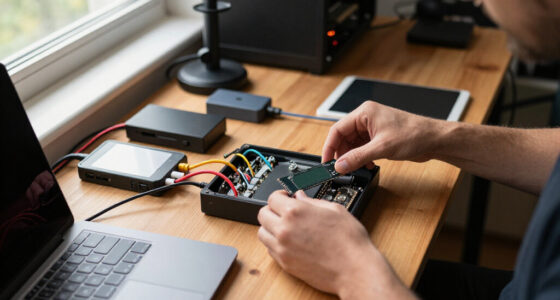

TL;DR

Get audio and creator gear delivered free with Prime
- Fast, free delivery on millions of items
- Prime Video, Amazon Music and more included
- Member-only deals all year
When a memory card fails, stop using it immediately, remove it safely, and test it with one known-good reader and computer. Recover files onto a separate drive, never format or repair the original before recovery, and send physically damaged or irreplaceable cards to a specialist.
The next shutter press can destroy the photograph you are trying to save. That sounds dramatic, but when a memory card starts throwing errors, every new write can overwrite recoverable data. The safest response is surprisingly simple: stop shooting, remove the card, and resist the camera’s cheerful offer to format it.
I have seen card trouble arrive in several forms on working shoots: a camera suddenly reports “Card cannot be accessed”, thumbnails turn into gray boxes, or a reader mounts the card and then disappears. The symptoms feel similar, yet the causes range from a dirty reader contact to logical corruption or a cracked card body. Your first moves matter because careless troubleshooting can turn a small file-system error into permanent loss.
This guide shows you how to protect the card, run safe diagnostic checks, choose between software and professional recovery, and decide whether the card should ever return to a camera. You will also build a backup routine that fits real photography, whether you shoot family weekends or a full wedding day. The aim is not panic-proof technology; it is a calm, repeatable response when technology lets you down.
Stop shooting at the first card error; another photograph, deletion, repair, or format can overwrite recoverable data.
Test the reading path with a known-good reader, cable, port, and computer while declining every repair or format prompt.
Create a sector-by-sector image when the card reads reliably, then recover files from that image onto a different drive.
Send cracked, hot, unstable, zero-capacity, or irreplaceable cards to a recovery specialist instead of running repeated scans.
Keep cards untouched until the photographs exist in two verified locations, and retire any card that produces recurring errors.
What to Do When a Memory Card Fails
The next shutter press can destroy the photograph you are trying to save. Stop using the card, protect the original, test only the reading path, and recover files onto separate storage.
Freeze the situation.
A camera may update directories, previews, allocation records, and sidecar data even when you think it is writing only one photograph. Calm, minimal handling preserves the best recovery options.
Stop shooting
No test frame, deletion, in-camera repair, or format.
Wait
Let the camera activity light go completely dark.
Power off
Switch the camera off before opening the card door.
Protect
Remove without touching contacts and place in a clean case.
Label it
Mark “FAILED — DO NOT USE,” then continue on a fresh card.
Test the path, not the photographs.
The chain includes the card, adapter, reader, cable, USB port, hub, computer, and operating system. Change one external component at a time while rejecting every repair prompt.
Look before powering.
Under good light, check for a cracked shell, bent edge, corrosion, burned contacts, liquid residue, or loose plastic dividers.
Swap accessories once.
Try a trusted reader, cable, direct USB port, and computer. For microSD, replace the full-size adapter before blaming the card.
Notice unstable behavior.
Disconnect anything that becomes unusually hot, smells electrical, or repeatedly mounts and disappears. Repeated power cycles can worsen damage.
Match the response to the symptom.
Software is useful when storage remains readable but its file map is damaged. Physical, controller, or electrical failures need a different level of care.
| What you observe | Likely issue | Safest next move | DIY? |
|---|---|---|---|
| Correct capacity; folders empty or unreadable | Logical corruption | Create a sector image, then scan the image | ✓Often |
| Files vanished after a quick format | Directory records replaced | Stop use; perform read-only recovery elsewhere | ~Carefully |
| Works in one reader, not another | Reader, adapter, cable, or compatibility | Copy once through the known-good path | ✓Yes |
| Disconnects, reports zero capacity, or heats up | Controller or electrical failure | Disconnect and request a specialist evaluation | ✗No |
| Cracked, bent, corroded, burned, or contaminated | Physical damage | Do not straighten, clean aggressively, or repower | ✗No |
Recover from a copy whenever possible.
A sector-by-sector image preserves the readable state of the card and lets recovery tools work without repeatedly stressing the original media.
Read-only software route
Appropriate for accidental deletion, quick formatting, missing folders, or file-system corruption when the card reads consistently.
- Create a sector-by-sector image on a healthy drive.
- Disconnect and preserve the original card.
- Scan the image with a reputable recovery tool.
- Save recovered RAW, JPEG, and video files elsewhere.
- Verify important files before declaring success.
Professional recovery route
Choose a specialist when the card is cracked, hot, intermittent, invisible as a device, incorrectly sized, liquid-damaged, or holds the only copy of critical work.
- Stop inserting the card into readers.
- Document symptoms without further testing.
- Store it in a clean, rigid protective case.
- Ask about evaluation fees and no-data policies.
- Ship only according to the laboratory’s instructions.
Escalation guide: risk rises with instability, physical damage, and the irreplaceable value of the files.
Retire doubt. Build redundancy.
Do not trust a card merely because it mounts again. Persistent errors, unexpected slowdowns, recurring corruption, or physical damage are retirement signals.
Protect the recovered set.
Keep the failed card untouched until the photographs exist in at least two separate locations and critical files open correctly.
Reduce future failures.
Use reputable cards, eject properly, avoid moisture and extreme temperatures, and replace questionable readers, hubs, or adapters.
Back up during the shoot.
Use dual card slots when available, rotate smaller cards, copy during breaks, and add local or cloud backup as soon as practical.
From error to verified photographs.
Each decision protects the next one. The original remains untouched while diagnosis, recovery, verification, and backup happen on separate media.
Error appears
Missing · slow · unreadableWrites stop
No format · no test shotPath tested
One trusted readerImage recovered
Separate healthy driveFiles verified
Two locations minimumYour First Five Minutes Can Save the Photographs
What to do when a memory card fails starts with one firm rule: stop every write operation immediately. Do not take a test photograph, delete a damaged file, run an in-camera repair, or accept a format prompt. Remove the card after the camera finishes accessing it, then label it so nobody accidentally reuses it.
A camera usually writes more than the image you see. It may update the file allocation table, create a preview, change a folder index, or write sidecar data. One harmless-looking test frame can land on storage blocks that still contain pieces of a missing RAW file. Before recovery, an apparently empty block may still hold useful data; afterward, it may contain a sharp photograph of your desk.
- Stop shooting as soon as you see an error, missing thumbnail, or unexplained slowdown.
- Wait for the camera’s activity light to go dark before switching the camera off.
- Remove the card without touching its metal contacts, then place it in a clean card case.
- Mark it as failed with tape, a small envelope, or a note in your phone.
- Switch to a fresh card if the shoot must continue.
Suppose you are photographing the first dance at a wedding and your camera reports a card error after three frames. The practical move is to pocket that card in a marked case and continue on a spare, ideally with the camera recording to two slots. Trying to inspect every thumbnail beside the dance floor adds pressure and creates more chances for a damaging write.
Do not format a failed card merely because the camera says formatting will make it usable. Making the card usable and recovering its existing photographs are two different goals.
memory card data recovery software
As an affiliate, we earn on qualifying purchases.
As an affiliate, we earn on qualifying purchases.
These Simple Checks Reveal Whether the Card or Reader Is at Fault
What to do when a memory card fails next is test the reading path, not the stored photographs. Use one known-good reader, another cable or USB port, and one computer if available. These checks can expose a reader problem without changing a byte on the card, provided you reject all repair and format prompts.
The reading path includes the card, its adapter, the reader, the cable, the USB port, the operating system, and sometimes a hub. That is a long chain. If an SD card works in the camera but not through a bargain reader attached to a loose hub, the reader path is the stronger suspect.
- Inspect under good light: Look for a cracked shell, bent edge, scorched contact, corrosion, or a loose plastic divider between contacts.
- Remove the adapter: If you use microSD inside a full-size SD adapter, test with another adapter because the adapter itself can fail.
- Change one item at a time: Try another port, then another reader, so you can identify which part caused the problem.
- Listen and feel: Disconnect a reader that becomes unusually hot, smells sharp or electrical, or repeatedly connects and drops.
On location, I keep a trusted reader and a short spare cable in the same pouch as my backup drive. If a card fails to appear through the first reader but mounts normally through the spare, I copy the files at once and retire the questionable reader. I do not keep reconnecting the card just to prove the result.
A card that appears with the correct capacity but displays missing folders often has a logical problem. A card reported as zero bytes, an absurd capacity, or no device at all may have controller or physical damage. This distinction is useful, but it is not a home diagnosis; irreplaceable work deserves a cautious recovery choice.
As an affiliate, we earn on qualifying purchases.
Match the Recovery Method to the Failure You Actually Have
What to do when a memory card fails depends on whether the fault is logical or physical. Software can often scan readable storage after deletion, formatting, or file-system corruption. Cracks, burned contacts, severe heat, liquid contamination, and a card that never appears as a device call for a professional recovery service.
| What you observe | Likely problem | Safer next move |
|---|---|---|
| Correct capacity, but folders are empty or unreadable | Logical corruption | Create an image of the card, then scan the image with recovery software |
| Files disappeared after an accidental quick format | Damaged or replaced directory records | Stop using the card and run read-only recovery onto another drive |
| Card works in one reader but not another | Reader, adapter, cable, or compatibility issue | Copy through the known-good path and replace the faulty accessory |
| Card disconnects, reports zero capacity, or becomes hot | Controller or electrical failure | Disconnect it and ask a recovery specialist for an evaluation |
| Card is cracked, bent, corroded, or burned | Physical damage | Do not straighten, clean aggressively, or power it again |
Logical corruption means the storage may still be readable even though the map that tells the computer where files begin and end is damaged. Think of a library with intact books but a shredded catalog. File-carving software searches the shelves for recognizable RAW, JPEG, and video structures rather than trusting that broken catalog.
Physical damage changes the calculation. Imagine finding a microSD card under a tripod foot, its edge visibly split, while it holds the only copy of a paid assignment. Repeatedly inserting it into readers could worsen a fractured connection, so professional help offers the better risk tradeoff even though recovery may be slow and cannot be promised.
Fast standards do not erase compatibility limits. According to the SD Association’s SD Express guidance [1], SD Express cards use newer interfaces while retaining defined compatibility behavior, but available performance depends on the host. A reader that lacks support may run at a slower mode; unexplained speed alone does not prove card failure.
professional memory card recovery service
As an affiliate, we earn on qualifying purchases.
As an affiliate, we earn on qualifying purchases.
Recover Files Without Writing Back to the Damaged Card
Safe recovery means reading the failed card once, making a sector-by-sector image when practical, and recovering photographs from that image onto a separate healthy drive. Never install software on the card or save recovered files back to it. If the card disconnects repeatedly, stop before repeated scans place more stress on failing hardware.
An image file is a block-level copy of the card, including areas the normal folder view calls empty. It freezes the card’s readable state, letting you try different recovery settings without repeatedly touching the original. You need free space at least equal to the card’s stated capacity, so imaging a 128 GB card calls for roughly 128 GB of available storage plus room for recovered files.
- Connect the card through a stable, known-good reader and decline repair or format prompts.
- Create a full card image with a reputable tool that supports read-only acquisition, if the card stays connected reliably.
- Disconnect and store the original card once the image completes.
- Scan the image with established recovery software such as PhotoRec, Recuva, or Stellar Data Recovery.
- Save recovered files to a different internal drive or external disk.
- Open a broad sample of RAW, JPEG, and video files, then compare file counts and capture dates against your shoot notes.
According to CGSecurity’s official PhotoRec documentation [2], recovered files must be written to another destination rather than the source storage. PhotoRec can identify files by their internal structures when directory information is gone, though recovered filenames and folder organization may not survive. A thousand usable images with generic names still beat a beautifully organized empty folder.
Recovery software is not magic, and newer tools that advertise AI-assisted reconstruction cannot restore blocks that have been overwritten or cannot be read. For example, a recovered JPEG may show a clean upper half and a band of bright magenta blocks below it. Keep every recovered version because another scanner or setting may assemble a more complete copy.
external hard drive for photo backup
As an affiliate, we earn on qualifying purchases.
As an affiliate, we earn on qualifying purchases.
Know When a Specialist Is Safer Than Another Software Scan
Choose professional recovery when the card has physical damage, disappears during reads, reports the wrong capacity, grows hot, or contains photographs you cannot replace. Home software works only when hardware can deliver stable data. If the card cannot do that, another scan adds time and may add stress without producing useful files.
Specialists may work with controller faults, damaged contact paths, or raw memory components in controlled conditions. Memory cards complicate this work because controllers can spread data across storage blocks and apply error correction. Extracting raw data is only part of the job; the service may also need to reconstruct the controller’s way of arranging it.
- Stop immediately if the card becomes hot, emits an electrical smell, or rapidly connects and disconnects.
- Keep a wet card unpowered and ask the recovery service for handling instructions.
- Do not bend a cracked card flat, scrape its contacts, freeze it, bake it, or open its plastic shell.
- Ask whether the service offers an evaluation, file list, privacy policy, and return procedure.
- Tell the technician what happened, which camera created the files, and whether any format or recovery attempt occurred.
Consider a wildlife photographer returning from a remote trip with one card that now shows zero capacity. The images cannot be recreated next Tuesday, and the card vanishes from the computer every few seconds. That is a poor moment for five different scanners; it is the moment to disconnect the card, document the symptoms, and seek specialist advice.
Your decision depends on the value and sensitivity of the work. Personal snapshots may justify a careful software attempt, while confidential client portraits may require a service with clear data-handling and deletion policies. Recovery has no guaranteed outcome, so treat confident promises of 100 percent success with caution.
Formatting Can Reuse a Card, but It Cannot Rescue Your Originals
Formatting belongs after recovery, never before it, because formatting prepares a card for new writes and can erase information recovery tools use. A quick format may leave file data in place for a time, while a fuller overwrite destroys far more. Neither option should be your opening response to missing photographs.
When a camera says a card must be formatted, it is telling you the camera cannot use the current file system. It is not saying the photographs are beyond recovery. Think of formatting as replacing a damaged contents page with a blank one: the book becomes ready for new chapters, but finding the old chapters gets harder as new text fills the pages.
Suppose you insert a card from another camera and your current body immediately requests a format. If you have already copied and verified the files, formatting in the camera you plan to use is sensible. If you have not copied them, cancel the prompt and return the card to your recovery workflow.
After successful recovery, I still do not trust a card that produced persistent read or write errors. Memory cards wear through repeated program and erase operations, while controllers manage bad blocks behind the scenes. You usually cannot see a dependable remaining-life percentage, so repeated errors, unexplained corruption, unusual slowness, or intermittent mounting are practical retirement signals.
A failed card may appear healthy after formatting, but temporary obedience is not proof of reliability. Retire it from capture work if the error returns or if the original fault had no clear external cause.
You can keep a retired card for a marked training exercise, but do not let it drift back into your working case. I cut or permanently label failed cards only after every recovery attempt and backup check is finished. The small cost of replacement is easier to absorb than uncertainty during a once-only moment.
A Two-Copy Workflow Turns Card Failure Into an Inconvenience
The best protection against card failure is an independent backup created before you erase or reuse the card. Keep the original card untouched until the copied photographs exist in at least two verified locations. For high-value assignments, dual-slot recording adds protection during capture, but only when the camera writes each photograph to both cards.
Two cards in one camera are not automatically two backups. Some cameras use the second slot for overflow, which leaves each photograph on only one card. Set the camera to duplicate or backup mode, confirm the icons in the manual, and test the behavior with a few unimportant frames before a real job.
- During capture: Use fresh, reputable cards and duplicate recording when the camera and assignment support it.
- During import: Copy to a working drive and a second independent drive before formatting cards.
- During verification: Open files from the beginning, middle, and end of every card, including several large RAW bursts or video clips.
- During storage: Keep one copy away from the main computer; cloud storage can add geographic separation after upload completes.
- Before reuse: Confirm both copies, then format the card in the camera that will record to it.
After a long event, the temptation is to empty cards, see thumbnails on a laptop, and declare the job safe. I treat thumbnails as a preview, not proof. A real check includes file counts, expected folder sizes, several full-resolution opens, and confirmation that the second destination contains the same material.
For example, imagine returning with 2,400 photographs across four cards. Copy them to your editing drive and a second external drive, verify both sets, then place the cards face down in a separate case until delivery. If the editing drive fails overnight, the second drive and untouched cards turn a sickening silence into a manageable delay.
Modern waterproof or shock-resistant claims can reduce certain risks, but they do not protect against deletion, controller faults, theft, fire, or leaving the entire camera bag in a taxi. A durable card is still temporary capture media. Your backup process, not the label on the card, carries the long-term responsibility.
Frequently Asked Questions
Why is my memory card not recognized by the camera or computer?
A card may go unrecognized because of file-system corruption, an incompatible reader, a failed adapter, dirty or damaged contacts, or an internal controller fault. Try one known-good reader and another port, but reject repair and format prompts. If the card reports zero capacity, becomes hot, or repeatedly disconnects, stop testing and seek specialist advice.
Can I recover photographs from a physically damaged memory card?
Physical recovery is sometimes possible, but the result depends on which components were damaged and whether the raw memory can still be read. Do not bend, scrape, heat, freeze, or power a cracked or wet card. Store it safely and contact a professional recovery service with experience in flash media.
Is it safe to format a corrupted memory card?
Formatting is safe only after you have recovered and verified every needed file. Before recovery, formatting may remove useful directory information and invite new writes. Even after a successful format, retire the card if errors return or if it previously showed unstable read or write behavior.
Which memory card recovery software should I try?
Established options include PhotoRec, Recuva, and Stellar Data Recovery, but features and platform support differ. Whenever possible, image the card first and scan that copy, then save recovered photographs to a separate drive. No software can restore overwritten or physically unreadable blocks.
What warning signs mean I should replace a memory card?
Replace a card that produces repeated write errors, corrupt files, missing thumbnails, unexplained slowdowns, wrong capacity reports, or intermittent connections across known-good readers. Visible cracks, corrosion, burned contacts, and unusual heat call for immediate retirement. A card that fails once without a clear reader or compatibility cause should not carry once-only photographs again.
Conclusion
When a memory card fails, protect what remains before trying to fix anything. Stop writing, test the reader path gently, recover onto another drive, and let a specialist handle physical damage or unstable hardware. Formatting can wait; your photographs cannot be put back once new data has painted over their storage blocks.
Then change the ending for next time. Build two verified copies before a card returns to your camera, and mark questionable cards so they never slip into a working case. The goal is a quiet, practiced response: one card comes out, a fresh card clicks in, and the photographs already captured stay frozen exactly where you left them.
Halloween Picks
halloween
As an affiliate, we earn on qualifying purchases.