
TL;DR

Get audio and creator gear delivered free with Prime
- Fast, free delivery on millions of items
- Prime Video, Amazon Music and more included
- Member-only deals all year
Photo backup on the road without a laptop works with a USB-C phone or tablet, a card reader, a powered hub, and a portable SSD — copying full card contents, then verifying file counts and opening sample files before formatting anything. The core rule is the 3-2-1 principle adapted for travel: originals stay on the card, one copy goes to an SSD kept separately, and a third copy goes to cloud storage or a second drive.
One of the most common photo-loss scenarios on the road involves a cheap card reader and a misleading progress bar. The transfer appears to complete, the card gets formatted, and weeks later a third of the files turn out to be corrupted previews rather than originals. Failures like this can cost more than any lens in the bag.
Here’s the thing most photographers learn the hard way: backing up photos while traveling without a laptop is entirely possible — often easier than hauling one through airport security. What trips people up isn’t the gear. It’s assuming the copy worked without checking.
This guide walks through the phone-plus-SSD workflow that has become standard practice for laptop-free travel, the power traps that kill transfers mid-copy, and the verification habits that separate a real backup from wishful thinking. No laptop required.
Your photos aren’t backed up until they exist on at least two separate devices — and you’ve verified both copies open correctly.
A phone or tablet with a powered USB-C hub, card reader, and portable SSD handles full RAW card backups without any laptop.
Never format a memory card mid-trip; filled cards are your original archive and one leg of the travel 3-2-1 strategy.
Verification beats assumption: compare file counts and folder sizes, open sample RAW files and video clips from the destination, and use checksums when availab…
Test the entire workflow — hub, cables, filesystem, app behavior — at home before departure; connector shape guarantees nothing.
Photo Backup on the Road Without a Laptop
A USB-C phone or tablet, a card reader, a powered hub, and a portable SSD replace the laptop entirely — copying full card contents, then verifying file counts and opening sample files before formatting anything. The core rule is 3-2-1, adapted for a suitcase: originals on the card, one copy on a separate SSD, a third in the cloud or a second bag.
The Travel 3-2-1 Rule That Saves Your Photos
Your photos aren’t backed up until they exist on at least two separate devices — and you’ve verified both copies open correctly. The classic 3-2-1 rule was designed for home studios with NAS boxes; here’s how it maps to a suitcase instead of a server rack.
Stay on the memory card
Don’t format, don’t “clean up as you go.” A filled card is an archive — one leg of your travel 3-2-1 strategy. Keep filled cards in a card wallet in a jacket pocket.
Land on a portable SSD
Copied from the card via your phone or tablet each evening. The SSD travels in a different bag — a rolling case, not the camera backpack.
Cloud or a second drive
The separation matters more than the count. Two SSDs in the same stolen backpack are one backup, not two. If one disappears at a train station, the other survives.
Never format a memory card until you’ve confirmed at least two usable copies exist. Not “the transfer finished.” Confirmed. Opened. Checked.
5 Laptop-Free Backup Methods, Ranked
Not all laptop-free methods are equal — some handle full RAW card dumps reliably, while others barely survive a handful of JPEGs. Here’s how the main approaches compare in real-world travel use.
| Method | Best For | Main Limitation | Verdict |
|---|---|---|---|
| 1Phone / tablet + external SSD | Full card backups, RAW files, video | Power management needs care | ✓ Winner |
| 2Extra cards kept unformatted | Treks, low-power trips | Crude and capacity-limited | ✓ Robust |
| 3Standalone card-backup device | One-button card copies | Dedicated products increasingly uncommon | ~ Niche |
| 4Cloud via phone / tablet | Off-site copy of best images | Bandwidth, data caps, upload behavior | ~ Situational |
| 5Camera-to-phone Wi-Fi | Selected JPEGs, social sharing | Slow and restrictive for RAW/video | ~ Last resort |
Pushing 64 GB of RAW files over camera Wi-Fi will drain your battery, throttle your speed, and drop the connection halfway through. Treat wireless as a convenience, not a backbone.
The Evening Routine: 10 Steps in Fifteen Minutes
A dependable nightly routine turns photo backup from a chore into a habit you can run in any hotel room. Plug in once, follow the chain, sleep well.
Connect the hub
Card reader, SSD, and charger into the powered USB-C hub — then the hub into your phone.
Copy the full card
Preserve the complete directory structure, including sidecar files. No cherry-picking.
Count the files
Compare file counts and folder sizes between card and destination. A mismatch means something didn’t arrive.
Open real files
Open RAWs, JPEGs, and clips from the destination drive itself — never trust thumbnails in an app.
Eject & separate
Checksum if supported, safely eject, then split the copies into different bags. Card stays unformatted.
How to Verify a Backup Actually Worked
A completed transfer only tells you the app stopped copying — not that what it copied is intact. Here’s the routine worth running every night on the road.
The Nightly Checklist
- 1Compare file counts between the card and the destination folder.
- 2Compare total folder sizes — a size mismatch means something didn’t arrive.
- 3Open several RAWs, JPEGs, and video clips from the destination drive itself.
- 4Check the folder structure matches the card, including sidecar files.
- 5Run checksum verification if your app supports it — the gold standard.
- 6Safely eject the drive before unplugging.
What Catches Real-World Failures
Some apps tuck imports away inside an application library — or silently transfer embedded RAW previews instead of full files. Your thumbnails look perfect. Your originals are gone.
Power, Cables & Filesystems: The Silent Killers
Power is the most common failure point in laptop-free backup — a phone often can’t run a card reader and an SSD at the same time, so transfers die mid-copy when the battery sags. Heat and low battery interrupt transfers even when everything is plugged in correctly. The fix: a powered USB-C hub with pass-through charging, short data-rated cables, and a modest-power drive.
exFAT
Commonly chosen for compatibility across cameras, mobile devices, Windows, and macOS. No 4 GB file limit.
FAT32
Broad compatibility, but cannot store individual files larger than 4 GB — unsuitable for many video workflows.
APFS
Primarily intended for Apple environments; unreliable elsewhere in a mixed travel kit.
NTFS
May be readable but not writable on some non-Windows devices without additional software.
Formatting erases a drive, and connector shape guarantees nothing. Test the entire workflow — hub, cables, filesystem, app behavior — at home before departure.
Key Takeaways
Your photos aren’t backed up until they exist on at least two separate devices — and you’ve verified both copies open correctly.
A phone or tablet with a powered USB-C hub, card reader, and portable SSD handles full RAW card backups without any laptop.
Never format a memory card mid-trip; filled cards are your original archive and one leg of the travel 3-2-1 strategy.
Verification beats assumption: compare counts and sizes, open sample RAWs and clips from the destination, use checksums when available.
Test the entire workflow — hub, cables, filesystem, app behavior — at home before departure. Connector shape guarantees nothing.
The Travel 3-2-1 Rule That Saves Your Photos When Things Go Wrong
Photo backup on the road starts with one principle: your photos aren’t backed up until they exist on at least two separate devices. The classic 3-2-1 rule — three copies, two media types, one off-site — was designed for home studios with NAS boxes and shelf drives. Travel compresses it, but the logic holds.
Here’s how it maps to a suitcase instead of a server rack:
- Originals stay on the memory card. Don’t format, don’t “clean up as you go.” A full card is an archive.
- One copy lands on a portable SSD. Copied from the card via your phone or tablet each evening.
- A third copy goes to cloud storage — or a second drive in a different bag.
The separation matters more than the count. Two SSDs in the same stolen backpack are one backup, not two. A sensible split keeps filled cards in a card wallet in a jacket pocket and the backup SSD in a rolling bag. If one disappears at a train station, the other survives.
A backup does not exist until the same photos are stored on at least two separate devices — and you’ve verified both copies open correctly.
And the golden rule that overrides everything else: never format a memory card until you’ve confirmed at least two usable copies exist. Not “the transfer finished.” Confirmed. Opened. Checked.
USB-C portable SSD for photographers
As an affiliate, we earn on qualifying purchases.
As an affiliate, we earn on qualifying purchases.
5 Laptop-Free Backup Methods, Ranked by How Well They Actually Work
Not all laptop-free backup methods are equal — some handle full RAW card dumps reliably, while others barely survive a handful of JPEGs. Here’s how the main approaches compare in real-world travel use.
| Method | Best for | Main limitation |
|---|---|---|
| Phone/tablet + external SSD | Full card backups, RAW files, video | Power management needs care |
| Standalone card-backup device | One-button card copies | Dedicated products increasingly uncommon |
| Camera-to-phone Wi-Fi | Selected JPEGs, social sharing | Slow and restrictive for RAW/video |
| Direct camera-to-drive | Tethered studio-style workflows | Only certain cameras support it — test first |
| Cloud via phone/tablet | Off-site copy of best images | Bandwidth, data caps, upload behavior |
The phone-plus-SSD combo wins for most travelers. A USB-C phone or tablet imports files from a card reader and copies them straight to an SSD through its file-management app. One device, no laptop, full folder structure preserved.
Wi-Fi transfer is the one beginners tend to over-rely on. It’s genuinely useful for grabbing twenty JPEGs to post from a café. But pushing 64 GB of RAW files over camera Wi-Fi will drain your battery, throttle your speed, and drop the connection halfway through. Wired transfers are generally preferable for large volumes — treat wireless as a convenience, not a backbone.
And don’t forget the simplest method of all: extra memory cards kept unformatted. A stack of cards in a card wallet, stored away from the camera bag, is crude, cheap, and remarkably robust. On a ten-day trip where daily uploads aren’t realistic, shooting enough cards to never reformat one is a legitimate strategy — particularly on treks where power is scarcer than bandwidth.
photo card reader for SD and CF cards
As an affiliate, we earn on qualifying purchases.
As an affiliate, we earn on qualifying purchases.
How to Verify a Backup Actually Worked (Before You Format the Card)
Verifying your photo backup means confirming the destination files are complete, identical, and openable — because a finished progress bar guarantees none of those things. A completed transfer only tells you the app stopped copying, not that what it copied is intact.
Here’s a verification routine worth running every night on the road:
- Compare file counts between the card and the destination folder.
- Compare total folder sizes — a size mismatch means something didn’t arrive.
- Open several RAWs, JPEGs, and video clips from the destination drive itself, not thumbnails in an app.
- Check the folder structure matches the card, including sidecar files.
- Run checksum verification if your app supports it.
- Safely eject the drive before unplugging.
Checksum verification is the gold standard — it mathematically confirms that source and destination files are byte-for-byte identical. But even without checksum-capable software, file counts plus spot-checking real files catches the vast majority of failures.
Watch for one sneaky trap: app-import behavior that hides your files. Some photo apps tuck imports away inside an application library instead of a visible folder, or worse, transfer embedded previews instead of full RAW files. Your thumbnails look perfect. Your originals are gone. This is precisely the failure mode behind the corrupted-preview scenario described at the start of this guide.
RAW previews do not prove full RAW files were copied — some apps silently transfer reduced-resolution versions.
Also, preserve the complete card directory rather than cherry-picking files. Some cameras and video formats depend on sidecar files and specific folder structures that break when you copy loosely.
powered USB-C hub for mobile devices
As an affiliate, we earn on qualifying purchases.
As an affiliate, we earn on qualifying purchases.
Power and Cables: The Silent Killers of Mobile Transfers
Power is the most common failure point in laptop-free photo backup — a phone or tablet often can’t run a card reader and an SSD at the same time, so transfers die mid-copy when the battery sags. Heat and low battery levels can interrupt transfers even when everything is plugged in correctly.
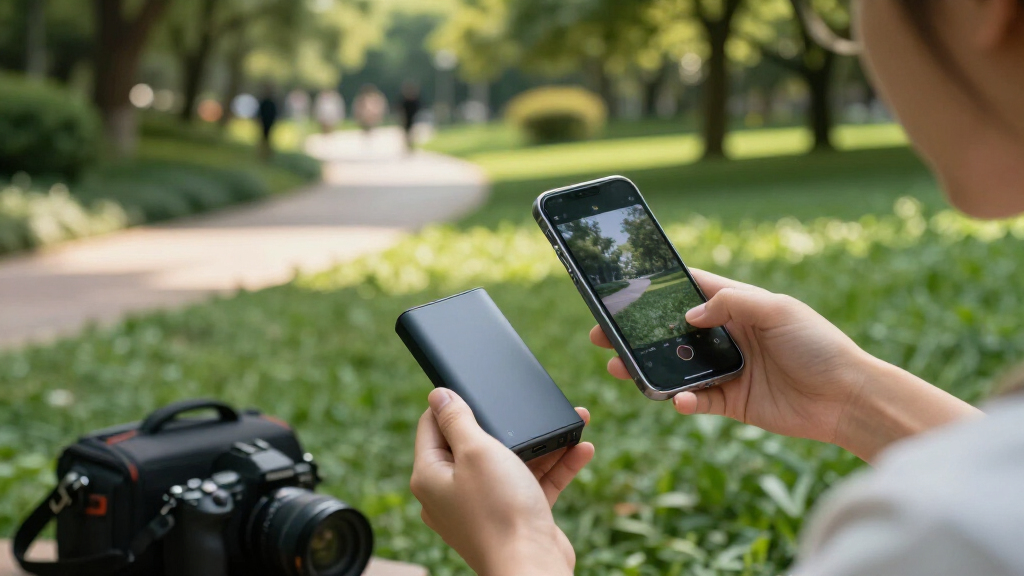
The fix is a powered USB-C hub or a hub with pass-through charging. Plug the card reader, the SSD, and your charger into the hub, then connect the hub to your phone. Now the reader and drive draw power from the wall, not from your phone’s battery, and the transfer runs while the phone charges.
Here’s what belongs in a travel backup kit:
- Powered USB-C hub with pass-through charging — the single most important accessory
- High-output power bank for airports, buses, and trekking huts
- Short, tested data cables — some USB-C cables charge fine but carry no data at all
- A power-efficient SSD — drives that pull hard can still brown out weak setups
That cable point deserves emphasis. USB-C describes a connector shape, not a capability. Cables that look identical can support charging only, with zero data lines connected — a “broken” SSD is often just a charge-only cable. Connector shape tells you nothing; test every cable before you travel.
The same caution applies to hubs and adapters generally. Cheap hubs are among the most frequent sources of unreliable transfers — flaky connections, silent disconnections, corrupted directories. A hub is not the place to save money when a week of shooting hangs on it.
As an affiliate, we earn on qualifying purchases.
Filesystems and Capacity: Get These Right Before You Leave Home
Choosing the right filesystem for your travel SSD means picking the one format every device in your workflow can read and write — and exFAT is usually it. exFAT works across cameras, phones, tablets, Windows, and macOS, with no practical file-size limit.
The alternatives each have a catch:
- FAT32 — broad compatibility, but caps individual files at 4 GB. A single long 4K video clip blows past that. Unsuitable for video work.
- APFS — great inside Apple ecosystems, problematic elsewhere.
- NTFS — often readable but not writable on phones and tablets without extra software.
Format and test your drives before departure, because formatting erases everything — you do not want to discover mid-trip that your tablet can see your NTFS drive but can’t write to it.
Capacity planning is the other pre-trip job, and guessing is how people run out of space on day six. Work from real shooting volume:
- Estimate your average data per shooting day (check last trip’s folders).
- Multiply by trip length, then add headroom for surprise high-volume days.
- Double the result if you’re keeping two drive copies.
- Video shooters: calculate from your camera’s bitrate, not intuition.
A modern high-resolution camera shooting RAW bursts can generate hundreds of gigabytes in a single day. And remember that transfer speed is dictated by the slowest link in the chain — card, reader, hub, cable, port, or drive. A blazing-fast SSD behind a slow reader still copies at reader speed.
The Evening Routine: A 10-Step Workflow You Can Run in a Hotel Room
A dependable nightly routine turns photo backup from a chore into a fifteen-minute habit. Here’s the exact sequence, runnable from a hostel bunk or a rental car:
- Label or number your memory cards before the trip so you always know what’s been copied.
- Shoot without deleting or formatting cards in the field.
- Connect card reader and SSD to your powered hub, hub to phone or tablet, charger to hub.
- Copy the entire card structure into a dated folder like 2024-11-03_Card03.
- Verify: file count, folder size, open representative files — or run checksums.
- Create a second copy on another drive or upload key images to cloud storage.
- Mark the card as backed up and slide its write-protect switch if it has one.
- Store card and drive separately — card wallet on you, SSD in different luggage.
- Recharge everything overnight: phone, tablet, power bank.
- Format cards only after photos reach a verified long-term archive back home.
Two honest caveats. First, write-protect switches are advisory — they help prevent accidental changes in compatible readers but aren’t real protection. Second, don’t delete files from the card mid-trip unless storage constraints force reuse, and only then after two verified copies exist. When reuse is justified, format in-camera rather than deleting files one by one.
If a transfer gets interrupted — dying battery, dozing screen, knocked cable — assume the destination holds incomplete files. Restart the copy completely, then verify again. Never let the phone sleep mid-transfer; most file managers abandon background copies rather than pausing them.
7 Backup Myths That Destroy Photos Every Year
Most photo loss on the road comes from confidently held myths, not gear failure. Knock these out before your next trip:
- “Importing means backing up.” If an app moves files off the card rather than copying them, one copy may be all you have.
- “RAID is a backup.” RAID reduces downtime after drive failure. It does nothing against deletion, theft, corruption, or loss.
- “Dual card slots are enough.” Both cards sit inside the same camera until you separate one. Theft or damage takes both.
- “A bigger card is safer.” It just reduces card changes — and concentrates more images on one failure point.
- “SSDs are indestructible.” They’re shock-resistant, but connectors crack, filesystems corrupt, and electronics still fail without warning.
- “Cloud sync is cloud backup.” Sync can propagate a deletion across every device. A synced folder is not a versioned, independent copy.
- “Rugged means waterproof.” Water-resistance ratings apply under specific conditions — port covers closed, cables disconnected — and never cover saltwater.
That last one matters for coastal and marine work. A “rugged” SSD rating tells you it survived a manufacturer’s drip test, not that it will survive a swim in the Atlantic. Dry bags still earn their place in a travel kit.
Encryption deserves a mention here too. For client work, journalism, or location-sensitive images, encrypting the backup drive makes sense — but confirm you can unlock it from the devices you’ll actually carry. An encrypted drive with a lost password is a very expensive brick.
Frequently Asked Questions
Can I back up an SD card directly to an SSD without a computer?
Yes — usually through a compatible phone or tablet, or a standalone copying device. Connect a card reader and the SSD to a powered USB-C hub, plug the hub into your phone, and use its file-management app to copy the card’s full contents. The powered hub matters: most phones can’t supply enough energy for a reader and an SSD simultaneously.
Is a phone sufficient for backing up RAW files?
Yes, if the phone supports your card reader, external drive, and the drive’s filesystem, and its file app copies original RAW files rather than embedded previews. This last point is the trap — some apps transfer reduced-resolution versions while displaying normal-looking thumbnails. Verify by opening RAW files directly from the destination drive.
What is the best filesystem for a travel SSD?
exFAT is usually the right choice because cameras, phones, tablets, Windows, and macOS all read and write it. FAT32’s 4 GB per-file limit rules it out for video, while APFS and NTFS create problems outside their native ecosystems. Format and test the drive at home — never discover a compatibility problem mid-trip.
How much storage should I bring on a trip?
Estimate your average data per shooting day, multiply by trip length, add headroom for unexpected high-volume days, then double the total if you’re keeping two drive copies. A high-resolution camera shooting RAW bursts can generate hundreds of gigabytes daily. Video shooters should calculate from the camera’s actual bitrate rather than guessing.
Should I delete files from the card after copying them?
Not during the trip, unless storage constraints make reuse unavoidable and at least two independent copies have been verified. When reuse is justified, format the card in the camera rather than deleting files individually — it’s cleaner and less error-prone.
Can I rely entirely on cloud storage while traveling?
No. Cloud storage is an excellent geographically separate copy when uploads complete and are verified, but internet access can be slow, expensive, blocked, or simply unavailable. Some services also optimize images, skip unsupported files, or pause background uploads. Keep at least one verified local copy regardless.
Are dual card slots in my camera enough protection?
They protect against a single card failing, which is valuable. But both cards remain inside the same camera until you separate one — so theft, damage, or loss of the camera takes both. Dual slots are redundancy, not backup. One copy still needs to leave the camera.
Conclusion
If you take one thing from this guide: the progress bar is not the backup. Copy the full card, count the files, open a few RAWs from the destination drive, and only then move on. Everything else — the hub, the cables, the second SSD — exists to support that moment of honest verification.
Next trip, try it. One evening, fifteen minutes, one powered hub and two drives in two different bags. Somewhere down the road, when a card dies or a bag goes missing at a station platform, you’ll be the photographer who shrugs and keeps shooting.
Halloween Picks
halloween
As an affiliate, we earn on qualifying purchases.