TL;DR

Get audio and creator gear delivered free with Prime
- Fast, free delivery on millions of items
- Prime Video, Amazon Music and more included
- Member-only deals all year
Carry enough memory card capacity for the photos and video you expect to make before your next verified backup, plus at least one compatible spare. Your needs depend on how much you shoot, how long you are away from a computer, and whether your camera records to two cards. For important work, split it across several cards and keep another copy on a separate device.
A memory card can look comfortably empty at breakfast and flash “card full” just as the best light arrives. I plan cards around the time I expect to shoot before I can make a verified backup, then pack at least one spare. That simple habit has saved plenty of shoots from becoming a search for a store, a laptop, or a way to clear space.
The right number depends on how much you shoot, your camera settings, and how long you’re away from a computer. A quiet weekend of JPEG travel photos takes less room than a wedding with RAW bursts and video. You’ll learn how to estimate your capacity, choose between one large card and several smaller ones, and keep used cards organized so you don’t erase the only copy of a frame you care about.
Plan capacity for the full interval between verified backups, then add at least one compatible spare.
Estimate storage with your camera’s typical file sizes, planned photo count, and video minutes; leave extra room for variation.
Several smaller cards can limit how much work one lost or failed card affects, while requiring more careful tracking.
Check camera compatibility and sustained write speed for the exact video or burst mode you plan to use.
Verify a separate copy before reusing a card, then format it in-camera and keep card status clear.
How Many Memory Cards Should You Carry?
Plan enough usable capacity for the shooting you expect before your next verified backup, then carry at least one compatible spare. Your shooting volume, backup access, and tolerance for risk determine the rest.
Estimate the capacity you need
Use files from your camera and settings to estimate the full interval between backups, then leave room for variation.
Use the formats and shooting pace you expect, including RAW bursts.
Check the storage rate for the exact recording mode and planned minutes.
Cover every shooting day until you can verify another copy, plus a spare card.
One large card or several smaller ones?
The choice balances simpler handling against how much work one lost or failed card could affect.
- Simpler to manage during a shoot.
- More work may be exposed to one card problem.
- Can limit the work affected by one card problem.
- Requires tracking which cards are used and safe to reuse.
Check the whole setup
Capacity alone does not ensure a card will work for your camera or recording mode.
Match your camera
Check the supported card type, capacity, and speed for your camera.
Meet speed needs
Sustained write speed matters for demanding video modes and bursts.
Track card status
Use a case and a clear empty, used, and backed up routine.
Start with one day of shooting, then pack a spare
For most shoots, carry enough memory card capacity for one full day of expected shooting plus a spare compatible card. That gives you room to keep working if your first card fills, fails, or goes missing. If you can make a verified backup each evening, you can reuse cards the next day; if you cannot, bring capacity for the whole time between backups. The backup interval is the key planning unit because it determines how much work is exposed to a full or failed card before you can make another copy.
“Enough” means usable space for the files your camera actually creates, with room left over. A card’s advertised capacity isn’t entirely available for your pictures, and RAW, JPEG, video, and camera settings all affect file size. A photographer making a few hundred JPEGs on a city walk has a different need from one shooting RAW bursts at a sports match. Headroom matters because file sizes and shooting volume vary; planning right up to the card’s limit turns an ordinary extra burst or short clip into an interruption.
For example, imagine you expect to shoot 700 RAW frames at a family event and your camera’s files average 35 MB. That’s about 24.5 GB before video or variation in file size. I’d plan beyond that rough figure, rather than pack a card that matches it exactly, and carry a spare in case you need to switch during the event. The spare is useful even if your estimate is sound: a card can be damaged, misplaced, or prove unreliable, and a second card lets you keep working without deciding under pressure which files to delete.
This is a starting point, not a universal card count. The most important aspects are your volume, backup access, and tolerance for risk. A short walk near home may call for two cards; a week in a remote area with no reliable transfer option calls for more capacity and more ways to protect the files. As the time between backups grows, so does the amount of work that could be affected by one card problem, so capacity planning and backup planning need to go together.
Products Worth Considering

Apple MacBook Air 13-inch with M5 chip, 16GB memory, 512GB SSD, and 12MP Center Stage camera

Bose SoundLink Flex Bluetooth Speaker (2nd Gen) – Portable Outdoor Speaker with Hi‑Fi Audio, Waterproof and Dustproof, USB‑C, Up to 12 Hours

Apple MacBook Air 15-inch with M5 chip, 16GB Memory, 512GB SSD, and Liquid Retina Display
As an affiliate, we earn on qualifying purchases.
Estimate capacity from the files you really make
You can estimate card needs by multiplying the typical file size from your camera by the number of photos or minutes you expect to shoot, then leaving extra space. This turns a vague guess into a useful plan. Check a batch of recent files from the same camera and settings; actual file sizes change with subject detail, compression, resolution, and format. Using your own files makes the estimate more useful than a generic number, while the extra space accounts for the fact that a typical file is not a guaranteed maximum.
For stills, count the kind of frames you expect to make, not just the shutter clicks you hope for. A burst of 20 RAW frames at a finish line uses space much faster than 20 carefully composed landscapes. If a typical RAW file is around 35 MB and you expect 1,000 frames, that works out to roughly 35 GB before headroom. Your camera may produce larger or smaller files, so use your own sample as the guide. Consider the pace of the assignment too: fast action often creates many near-duplicate frames that are useful for choosing the best moment, but those bursts can raise capacity needs far beyond a casual estimate based on the final number of selects.
Video needs its own estimate. Recording time and bitrate determine how quickly space disappears; a camera set to a demanding 4K mode can fill a card far faster than casual JPEG shooting. If you plan an hour of video, check your camera’s recording information or manual for the storage rate of that exact mode, then multiply by the planned recording time. The setting matters because resolution alone does not tell you the data rate: two modes with the same resolution can use storage at very different speeds, and a high bitrate can also require a faster card.
Make a quick note in your phone before a trip: expected photos, video minutes, and backup interval. If a wildlife morning could turn into long bursts or a travel day includes interviews, add room for that change. Cards are small; missed footage is not easy to recreate. Reviewing the estimate against the actual space used after a shoot also improves the next one: you can see whether your assumed frame count or file size was realistic and adjust the plan instead of carrying either too little or substantially more than you need.
Choose several smaller cards when a single failure would hurt
Several smaller cards spread your images across separate pieces of media, so a lost or failed card affects a portion of the shoot instead of everything on one card. One large card is simpler to manage, but it concentrates risk. Your choice depends on how much you shoot and how costly it would be to lose a day’s work. Dividing work limits the potential loss from one card problem, but it only helps if you switch cards at sensible points and keep used cards secure.
Say you’re photographing a three-day family trip and carry one huge card. If it goes missing on day two, every image may be gone with it. With multiple cards and a routine of switching at sensible points, you limit the number of days exposed to one card’s failure or loss. You do take on the small task of tracking which cards are full and which are safe to reuse. That tradeoff is practical: fewer, larger cards reduce handling and tracking, while more cards create smaller batches of work that are easier to isolate if one goes missing.
Smaller cards don’t replace backups, and switching cards too often can create its own distraction. During a fast-moving ceremony, you may prefer to keep shooting rather than stop to juggle tiny cards. In my own planning, I match card size to the pace of the work: enough space for a useful block of shooting, but not so much that every important image lives on one card for the entire trip. The aim is to make card changes at natural breaks, so risk is spread without adding interruptions at critical moments.
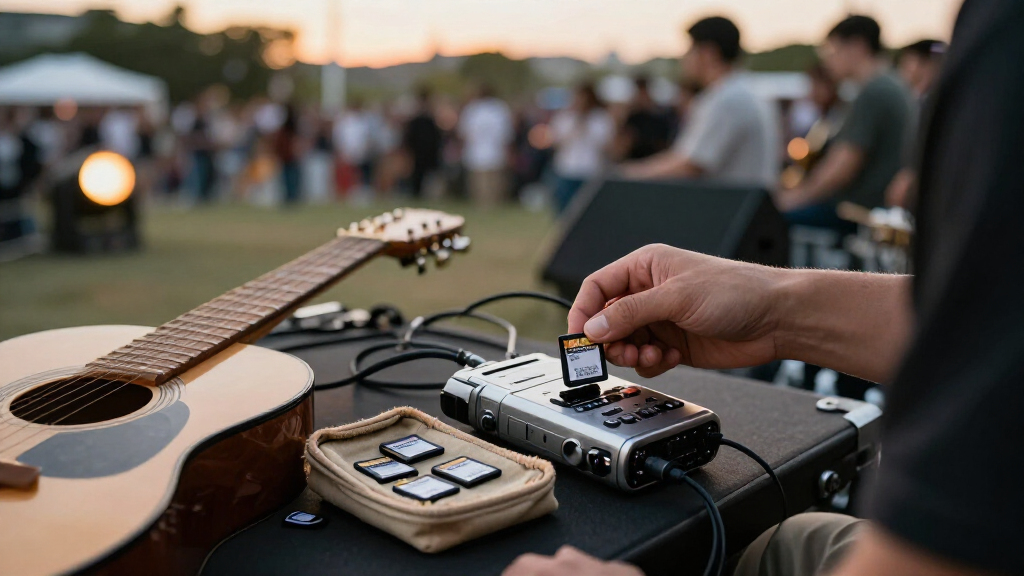
Keep cards in a protective case, and give each slot a clear place. A consistent orientation can tell you at a glance which cards are empty and which are used. That little bit of order matters when you’re tired, working in low light, or changing cards in the rain. If you cannot tell a used card from an empty one immediately, the extra cards increase the chance of formatting or reusing the wrong card, undermining the risk reduction you wanted.
Use this card plan when you’ll be away from a computer
When you cannot offload files, bring enough card capacity for every shooting day until your next verified backup, plus at least one compatible spare. The longer you’re away from a computer, the more your plan depends on your shooting volume and the chance to resupply. A card count that works for a weekend at home may fall short on a remote trip. A verified backup changes the calculation because it gives you another copy and may let you safely reuse a card; an upload or transfer that has not been checked does not provide the same confidence.
- Estimate each day. Use your typical photo file size and likely frame count; add a separate estimate for video.
- Multiply by the days between backups. If you expect 25 GB per day and will shoot for four days, start planning above 100 GB.
- Add headroom and a spare. Leave room for longer days or unexpected video, and carry a card you know the camera supports.
- Check your backup options. A laptop, portable SSD, or dedicated backup device can shorten the amount of card capacity you need to carry.
For example, on a five-day hiking trip, you may shoot more on the first day than expected when the weather clears. Without a laptop or reliable place to buy compatible cards, spare capacity gives you options. Cloud uploads can help when you have a strong connection, but they may stall or remain incomplete; keep a local copy on a separate device for work that matters. The tradeoff is weight and handling: carrying enough cards for the whole trip is simple, while carrying a backup device adds another item but can create a second copy earlier and reduce the number of cards you need.
Check speed and camera compatibility before you pack
A card needs the right format, capacity support, and sustained write speed for your camera and recording mode. A large card can still be unsuitable for high bitrate video or long bursts if it cannot keep writing data quickly enough. Check the camera maker’s requirements for the exact mode you plan to use, and confirm your camera accepts that card type and capacity. This check prevents two different problems: an unsupported card may not work in the camera at all, while an inadequate write speed may only become apparent when a demanding recording starts.
This matters most when you ask the camera to write continuously. A short burst may fit in the camera’s buffer, then the camera needs the card to clear that buffer before the next burst. Video keeps writing for much longer. If the card cannot sustain the required rate, recording may stop or the camera may refuse that mode. In practice, a card that works for occasional stills can feel perfectly fine until a long burst or video session exposes the limit, so match the card to the most demanding use you expect during the shoot.
For instance, a photographer might use one card successfully for still portraits but find it unsuitable for a high-demand video setting. That’s not a contradiction: the workload changed. Before a trip, test the card in the camera using the same settings you expect to use, including a long recording or burst sequence if those matter to your work. A brief test can reveal interruptions or compatibility issues at home, where changing cards is easy, rather than during a moment you cannot repeat.
Two card slots can also change the plan. Depending on the camera and settings, you can record a second copy in-camera or send different formats to separate cards. That offers extra protection during the shoot, but both cards remain in the camera and are still exposed to the same accident, theft, or camera problem. For important files, make another copy on a separate device when you can. Mirroring to two cards reduces the chance that a single card failure loses a frame, while a separate device reduces risks that affect the camera and both cards together.
Keep cards organized so you don’t erase the wrong one
A simple empty, used, backed-up routine makes it much harder to format the wrong card. Use a protective case and a consistent way to mark card status, such as labels or a fixed orientation. The aim is to know whether a card is ready to shoot, contains the only copy, or has a verified backup. Those states matter because a card that merely looks full may still hold the only copy, while a card marked backed-up can be reused with much less uncertainty once the transfer is checked.
Imagine you finish a late reception and put the card in your bag beside two others. The next morning, the tiny difference between full and empty can be easy to miss. If you always place shot cards with the label facing one way and empty cards the other, you can identify them without turning every card over and hoping you remember. A consistent routine replaces memory with a visible cue, which is especially useful when you are tired or moving quickly.
After transferring images, verify that the files open and that the copy includes the folders and clips you expect. For important work, keep another copy on a separate device before reusing the card. Cards are storage, not backups. Two copies on the same card do not protect against losing that card. Verification matters because an incomplete transfer can leave gaps that are hard to spot later, and reusing the card then removes the chance to copy those files again.
Once your copies are checked, format the card in the camera that will use it. Avoid deleting photos one by one in-camera when possible; that leaves a mixed card state and makes it harder to trust your routine. A checked transfer followed by an in-camera format gives you a clean start for the next shoot. It also makes card status easier to read: an empty card is ready for new work, while a card that still contains files should be treated as used until its backup is verified.
Swap in a spare if a card fills or behaves oddly
If a card fills or the camera reports an error, stop relying on that card and switch to your spare. Don’t keep deleting files or repeating recovery attempts if it may hold the only copy of important images. First protect the shoot: get a known compatible card working, then decide what to do with the original after you have a safe copy or professional recovery advice. This separates two priorities: continuing to capture new work and preserving anything already on the questionable card.
A full card is usually a planning problem, not a reason to erase frames in a hurry. At a birthday party, you can change cards during a pause and continue photographing. If you have no spare, deleting a handful of images may seem tempting, but it can remove moments you can’t recreate and leave the card in a confusing state. Switching cards preserves the existing files and gives you time to review them later, when you can make careful choices instead of guessing which images are safe to discard.
If a card acts strangely, avoid writing more data to it. The camera may still show some images, but new files or repeated formatting can make recovery harder. Set it aside, label it so nobody reuses it by mistake, and use a different card for the rest of the day. A label and separation from your ready-to-use cards help prevent an accidental format, which could turn a temporary card problem into permanent loss.
For that reason, a spare is not just extra capacity. It is a way to keep working without rushing decisions about files. The best time to discover a card problem is during a test at home, when you can replace it calmly and confirm your camera and spare work together. Testing also means the spare is known to fit your camera and assignment, rather than being an untested card that may fail to support the mode you need.
Frequently Asked Questions
How many memory cards should I take on a trip?
Bring enough capacity for your expected shooting until your next verified backup, plus at least one compatible spare. If you’ll be away from a computer for several days, estimate the full interval and add headroom for unexpected bursts or video.
Is one large card better than several smaller cards?
One large card is simpler to manage, while several smaller cards limit how much work could be lost if one card fails or disappears. For important events or long trips, dividing the shoot across cards can reduce risk, provided you keep them organized.
How much storage do I need for a day of shooting?
It depends on your file format, camera settings, burst rate, and video use. Multiply typical file size by the photos you expect, estimate video separately, and leave extra space rather than filling the card to its limit.
Should I reuse a card after copying the photos?
Reuse it after you verify the transfer and have another copy if the images matter. Then format the card in the camera that will use it; avoid deleting individual images as your regular clearing method.
Do I need faster memory cards for video?
Often, yes. Check the camera maker’s speed requirements for the exact recording mode, because sustained write speed affects whether a card can keep recording. Capacity alone does not tell you whether it can keep up.
Can I rely on cloud storage while traveling?
Cloud storage is useful when you have reliable connectivity, but uploads can be slow, unavailable, or incomplete. Keep a local copy on a separate device for important photos and video.
Conclusion
Plan for the shooting you expect between backups, leave space for the day to run long, and carry one compatible spare at minimum. If losing a whole day’s work would sting, spread it across cards and make a second copy on another device as soon as you can.
A full card should be a small pause, not the end of the story. Keep your spare close, your routine clear, and your attention on the light that brought you there.