
TL;DR

Get audio and creator gear delivered free with Prime
- Fast, free delivery on millions of items
- Prime Video, Amazon Music and more included
- Member-only deals all year
External drives suit photographers who want fast, simple, portable storage on one main computer, while a NAS suits growing archives, shared studios, automated backups, and access from several devices. Neither option protects your photographs by itself; the safest practical setup keeps three copies on two storage types, with one copy elsewhere.
A single modern camera can fill a drive with surprising speed. Shoot 2,000 RAW files at roughly 50 MB each, and one busy weekend produces about 100 GB before you export a single JPEG. I have returned from assignments with cards lined across my desk like tiny black dominoes, each one holding photographs I could not recreate.
You need more than a place to drop those files. You need quick editing access, a clear backup routine, enough room for future shoots, and a way to recover when a drive clicks, disappears, or gets knocked onto a wooden floor. The choice between external drives and a NAS shapes every part of that routine.
This guide shows you where each option works well, where it becomes awkward, and why many photographers eventually use both. You will compare real transfer speeds, capacity, remote access, security, and failure protection without getting buried in network jargon. By the end, you can build a storage setup that fits your actual shooting habits, not an imaginary studio workflow.
Choose an external SSD when one computer handles active editing and you value portability, quick setup, and transfers above 500 MB/s.
Choose a NAS when several devices need one archive, automated backups matter, or your collection has outgrown a shelf of separately labeled drives.
Treat RAID as protection against a disk failure, not as a backup; keep three copies on two storage types with one copy elsewhere.
Measure your busiest recent year of photo growth, plan for at least three more years, and calculate backup space separately.
For a balanced workflow, keep catalogs and active projects on fast local storage while the NAS holds the central archive and automated copies.
External Drives vs NAS for Photo Storage
External drives win on direct speed, portability, and simplicity. A NAS wins when your archive must serve several devices, run automated jobs, and grow without becoming a shelf of disconnected disks. Neither is a backup by itself.
Choose for the way you actually shoot
The deciding factors are where you edit, how often you travel, how many people need the archive, and whether you want storage jobs to run without your main computer.
Direct, fast, portable
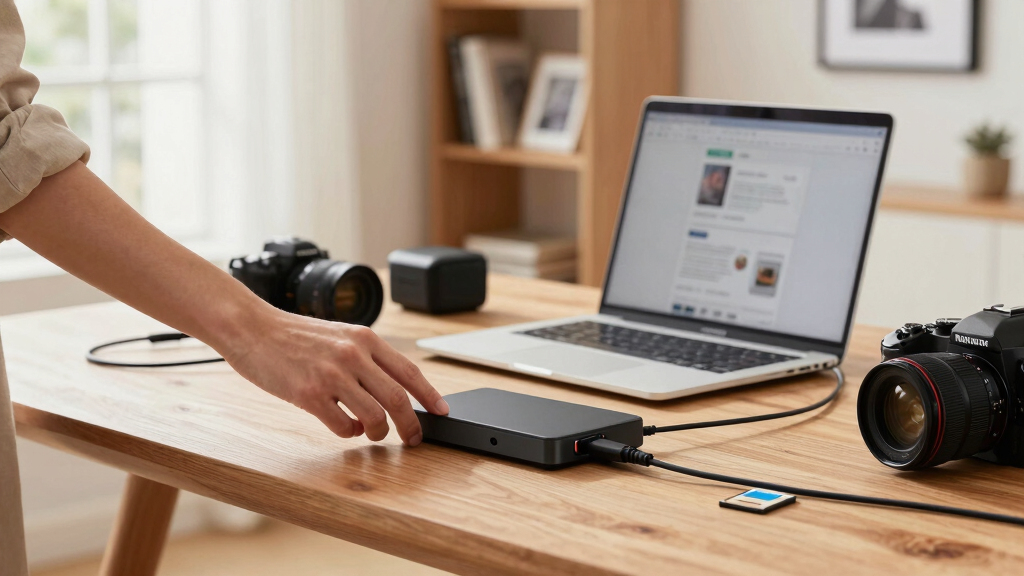
A USB or Thunderbolt drive appears like any other disk. It is quick to set up, easy to carry, and ideal when one computer handles most active editing.
- Catalogs and current projects live beside the editing computer
- Portable SSDs tolerate travel better than desktop hard drives
- Transfers above 500 MB/s make large imports feel responsive
- Expansion means adding and labeling another separate volume
Central, shared, automated
A NAS is a small storage computer attached to your network. It stays in one secure place while approved devices and users reach a common archive.
- Several computers can access one organized photo library
- Scheduled backups, snapshots, and user permissions run centrally
- Capacity can expand within the enclosure’s drive-bay limits
- Setup involves storage pools, accounts, updates, and networking
The real differences before you spend
No row produces a universal winner. A location photographer may value the silent SSD in a jacket pocket, while a studio may value a decade of sessions available to every workstation.
| Workflow question | External drive | NAS |
|---|---|---|
| Where are files available? | ~Primarily on the connected computer | ✓Across the local network and, when secured, remotely |
| How fast is active work? | ✓External SSDs can exceed 500 MB/s | ~Often 50–200 MB/s, limited by the whole network path |
| How does capacity grow? | ~Add another drive and manage another volume | ✓Add or replace disks within the NAS limits |
| How difficult is setup? | ✓Usually plug in, format, and create folders | ✗Requires storage, account, update, and backup settings |
| Can several people work? | ✗Awkward without moving or sharing the drive | ✓Designed for multiple devices and controlled users |
| What if one disk fails? | ✗Files vanish unless another copy exists | ~RAID may maintain service, but a backup is still required |
| Does it travel well? | ✓Portable SSDs travel easily | ✗Normally stays powered in one secure location |
✓ strong fit ✗ weak fit ~ depends on configuration
Drive speed is only one part of the route
A NAS transfer crosses the computer, adapter, cable, switch, and NAS interface. The slowest link sets the practical ceiling—even when fast disks sit inside the enclosure.
Calculate space without buying blind
Measure a busy recent year instead of guessing. Then plan separately for the working archive and every backup copy; printed drive capacity is not the same as usable protected space.
A 4 TB destination leaves almost no breathing room. A more practical working target is roughly 9–12 TB of usable space for growth, the existing archive, and operational headroom—before separate backup capacity is added.
Build a chain that survives failure
Your photographs need a route from capture to recovery. Each link solves a different problem; redundancy inside one box cannot protect against theft, fire, accidental deletion, or a damaged enclosure.
RAID may keep a NAS operating after a disk failure. It does not create an independent copy and cannot reverse every deletion, infection, theft, fire, or controller failure.
Three practical setups
Start with the smallest system that supports your actual workflow, but design the backup path before the archive fills the first drive.
External-first
Use a fast portable SSD for active work, a larger external drive for the archive, and an automatic off-site copy. Best when one computer does nearly everything.
Hybrid workflow
Keep catalogs and current projects on fast local storage. Move completed work to the NAS, then automate local and off-site backups from the central archive.
NAS-first
Use central permissions, snapshots, and scheduled jobs for several users. Add fast workstation storage when large RAW catalogs need lower-latency editing.
Choose an external SSD for portable speed and a NAS for central access, automation, and scalable organization. Whichever you choose, protect the photographs with three copies on two storage types, including one copy elsewhere.
Which Setup Fits the Way You Actually Shoot?
External Drives vs NAS for Photo Storage comes down to where you edit, how many people need the archive, and how often you move between computers. Choose an external drive for direct, portable simplicity; choose a NAS when you need central storage, automatic jobs, or access from several devices.
An external drive connects straight to your computer through USB or Thunderbolt. It appears like another disk, so you can create folders, import a Lightroom catalog, or copy a finished job without learning a new control panel. When I am editing on location, a portable SSD is hard to beat: it slips beside the laptop, makes no spinning sound, and handles a bumpy train ride better than a desktop hard drive.
A NAS, or network-attached storage, is a small storage computer connected to your router or network switch. Several laptops, desktops, tablets, and phones can reach it at once, subject to the accounts and permissions you set. In a two-person studio, that means you can edit selects upstairs while an assistant exports client JPEGs downstairs without passing a drive across the room.
The tradeoff is friction. An external drive is usually ready after formatting, while a NAS asks you to choose drives, create storage pools, set user accounts, schedule updates, and configure backups. None of that is beyond a careful beginner, but setup time is real; expect an evening rather than five minutes.
- Choose an external drive if one computer handles most of your work and portability matters.
- Choose a NAS if several devices or people need one organized archive.
- Use both if you want fast local editing plus centralized backup and long-term storage.
As an affiliate, we earn on qualifying purchases.
See the Real Differences Before You Spend or Rebuild
External Drives vs NAS for Photo Storage is a choice between direct-attached speed and simplicity on one side and central access and automation on the other. The table below shows how those differences affect a working photographer rather than treating storage as a contest between specification sheets.
| Workflow question | External drive | NAS |
|---|---|---|
| Where can you reach files? | Primarily from the connected computer | Across your local network and, when configured safely, remotely |
| What speed can you expect? | External SSDs can exceed 500 MB/s | Often about 50–200 MB/s, depending on the network [1] |
| How does capacity grow? | Add another drive and manage another volume | Add or replace disks within the NAS limits |
| How hard is setup? | Usually plug in, format, and create folders | Requires storage, network, account, update, and backup settings |
| What happens if one drive fails? | Files vanish unless another copy exists | RAID may keep the NAS running, but a separate backup is still required |
| Can several people work at once? | Awkward without moving or sharing the drive | Designed for multiple users and devices |
| Does it travel well? | Portable SSDs travel easily | Normally stays powered in one secure location |
The speed numbers need context. A single Gigabit Ethernet connection has a theoretical ceiling of 125 MB/s, and real file transfers usually land below that after network overhead. Faster 2.5, 5, or 10 Gigabit networking can raise the ceiling, but only when the NAS, switch, cables, and computer all support the faster link.
Imagine importing a 120 GB wedding. A good external SSD may finish the copy while you make coffee and label folders, while a basic network connection can take longer. Yet the NAS can keep copying after you close the laptop, create scheduled snapshots, and serve previews to another computer.
No row declares a universal winner because the workflow decides the value. A travel photographer may prize the silent little SSD in a jacket pocket, while a family portrait studio may prize the NAS that keeps ten years of sessions in one searchable location.
As an affiliate, we earn on qualifying purchases.
Calculate Enough Space Without Buying Blind
Your storage target should cover your current archive, at least two or three years of new work, and the temporary space used during imports, exports, and backups. Start with measured annual growth rather than a guess, then leave room so your drive or NAS does not spend its life packed to the rim.
Begin by checking the size of your photo folders from the last full year. If you produced 3 TB of RAW files, layered edits, video clips, and exports, a 4 TB destination leaves almost no breathing room. A practical working target would be closer to 9–12 TB of usable space for the archive, growth, and operating headroom.
- Measure your archive. Record the total size of your original photos, catalogs, sidecar files, finished masters, and client deliveries.
- Measure one year of growth. Use a busy recent year rather than a quiet one.
- Multiply annual growth by three. This creates a useful planning window without pretending you can forecast forever.
- Add working space. Reserve room for simultaneous imports, exports, previews, and temporary project copies.
- Calculate backup capacity separately. Three copies of a 10 TB archive require more than one 10 TB storage device.
NAS capacity needs extra care because the numbers printed on the drives do not equal usable storage. Four 8 TB disks do not automatically give you 32 TB available; a redundant RAID layout may reserve the equivalent of one or more disks for failure protection. Formatting, file systems, and snapshots reduce the space you see further.
External drives create a different problem: shelf sprawl. One drive becomes three, then six, with labels such as Archive New and Archive New Final. If you choose external storage, use clear date-based labels and keep a simple index showing which jobs live on each disk.
For example, I would rather manage two clearly named archive volumes than hunt through a shoebox of small drives while a client waits. Capacity is not only a number; organization is part of storage. If you cannot locate a photograph quickly, your archive is functionally slower than the hardware suggests.
portable external hard drive for RAW files
As an affiliate, we earn on qualifying purchases.
As an affiliate, we earn on qualifying purchases.
Protect Your Photos When a Drive Fails
External Drives vs NAS for Photo Storage does not decide whether your photographs are safe; your backup design does. Keep at least three copies on two kinds of storage, with one copy in another physical location, and test that you can restore files before trusting the system.
RAID is not a backup. It can keep a NAS running after a disk failure, but it cannot rescue a folder you deleted, files damaged by software, stolen equipment, or a building-wide disaster.
RAID protects availability. In a supported redundant layout, the NAS can rebuild data after one drive fails, depending on the chosen configuration. That is valuable when a studio needs Monday’s client folders without waiting for a full restore, but the rebuild places heavy demand on the remaining disks and does not erase other risks.
A practical photographer’s version of the 3-2-1 backup rule might use an external SSD as the active project drive, a NAS as the automatic local copy, and encrypted cloud or an off-site drive as the distant copy. External-drive users can follow the same rule with two separate local drives and one copy stored away from the home or studio.
Consider a corrupted catalog that silently syncs across your devices. A plain mirror may copy the damage perfectly, while versioned backups or NAS snapshots let you return to yesterday’s healthy file. Schedule daily versions for active catalogs and less frequent versions for finished work, based on how much change you can afford to lose.
Then perform a small restore test every few months. Pick one RAW file, one sidecar, one catalog backup, and one finished TIFF; restore them into a temporary folder and open each file. The soft click of a recovered shutter frame is more convincing than a green status icon.
According to PhotoMocha’s storage guidance, NAS systems commonly support automated backups, snapshots, and RAID, while ordinary single external drives rely more heavily on manual routines [1]. The hardware can reduce repetitive work, but automation still needs monitoring; failed jobs and disconnected destinations can go unnoticed.
network attached storage for photo archive
As an affiliate, we earn on qualifying purchases.
As an affiliate, we earn on qualifying purchases.
Keep Editing Fast Without Turning Your Network Into a Bottleneck
External Drives vs NAS for Photo Storage favors an external SSD for responsive editing and a NAS for centralized access. You can edit directly from either, but large RAW previews, layered Photoshop files, and video clips expose every weak cable, slow network link, and overloaded disk.
An external SSD connected through a suitable USB or Thunderbolt port can exceed 500 MB/s in large transfers [1]. That does not make every Lightroom action five times faster, because preview generation and exports also depend on the processor, memory, catalog location, and file type. It does make big imports and copies feel brisk.
A NAS crosses the network, so each link matters. A fast NAS connected through 10 Gigabit Ethernet will still crawl if your laptop joins through crowded Wi-Fi at the far end of the house. You may hear no mechanical warning; thumbnails simply appear one beat late, like a drummer falling behind the song.
For a concrete example, suppose you are culling 4,000 wildlife frames from a high-resolution camera. Keeping the catalog and previews on your computer’s internal SSD while storing the original RAW files on the NAS can make browsing smoother. Your editing application reads the lightweight previews rapidly, while the NAS supplies originals when you zoom deeply or export.
- Use a wired Ethernet connection for predictable NAS editing.
- Keep catalogs, caches, and previews on a fast internal or external SSD.
- Copy active projects locally when you need the quickest response, then return finished files to the NAS.
- Test with one real job before moving your whole archive.
This hybrid approach separates active work from deep storage. I often think of it as a kitchen counter and pantry: the counter holds tonight’s ingredients, while the pantry holds everything organized behind the door. Your working drive stays quick, and your archive stays central.
Build a Storage Routine You Can Still Manage in Five Years
The most durable setup gives every file a clear path from memory card to working storage, then to a local backup and an off-site copy. Keep the routine simple enough to repeat after a long shoot, because a clever system you skip at midnight provides less protection than a plain one you use every time.
Here is a practical routine for a solo photographer. Import new cards to an internal or external SSD, copy the folder automatically to the NAS, and wait for both copies before formatting the cards. During a week-long trip, keep the cards plus a second portable drive in separate bags so one lost backpack does not take everything.
Once the job is delivered, move the complete project into a dated archive structure such as 2026/2026-07-Client-Job. Preserve the RAW files, selects, sidecars, catalog or session file, layered masters, and final delivery set. Delete replaceable previews and temporary exports when space matters, but document that choice so future you knows what is missing.
Security deserves the same practical thinking. Encrypt portable drives that leave your desk, use unique passwords and multi-factor authentication for remote NAS access, install system updates, and limit each user to the folders they need. Avoid exposing a NAS directly to the internet through improvised router settings; a vendor relay, properly configured VPN, or another supported method is easier to control.
Remote access also depends on upload speed at the NAS location. A 1 GB folder feels light on a local network but heavy across a slow home connection. Send small JPEG proofs through a dedicated shared folder rather than asking a client to pull original RAW files from your archive.
Review the system twice a year. Check free space, backup logs, failed-drive warnings, remote accounts, software updates, and one sample restore. PhotoMocha identifies hybrid storage, cloud integration, remote apps, and stronger access controls as growing parts of modern photo workflows [2], but new features only help when they remain understandable and maintained.
Source notes: [1] PhotoMocha, Memory, Storage & Backup guidance on external-drive and NAS speed, redundancy, and access. [2] PhotoMocha research overview covering hybrid photo storage, remote access, automation, and security developments.
Frequently Asked Questions
Which is better for a beginner, an external drive or a NAS?
An external drive is usually easier for a beginner because you connect it, format it, and start copying files. Pair it with a second backup drive or an off-site service, since one external drive is still one failure point. Move to a NAS when multiple computers, automatic jobs, or a growing archive make the added setup worthwhile.
Can I edit photos directly from a NAS?
Yes, you can edit directly from a NAS, especially over wired 2.5 or 10 Gigabit Ethernet. On basic Gigabit Ethernet or Wi-Fi, large RAW files may feel slower than they do on an external SSD. Keeping catalogs and previews on a local SSD often gives you a smoother experience while the originals remain on the NAS.
Is RAID enough to protect my photo archive?
No. RAID keeps storage available after certain drive failures, but it does not protect you from accidental deletion, theft, malware, fire, or damaged files copied across the array. You still need a separate, versioned backup and another copy stored elsewhere.
How much storage should I buy for photography?
Measure your current archive and your busiest recent year, then reserve room for at least two or three years of growth. If you add 3 TB each year, buying only 4 TB of free capacity creates another storage problem almost immediately. Remember that NAS redundancy reduces usable capacity, and backup copies need their own space.
Are SSDs better than hard drives for long-term photo storage?
SSDs are excellent working drives because they are fast, quiet, and resistant to the bumps that portable equipment receives. Hard drives remain practical for large archives and backups, while neither technology deserves to hold your only copy. Long-term safety comes from multiple checked copies, not from choosing one drive type.
Can I access a NAS while traveling?
Most modern NAS systems support remote access through apps, web tools, or a VPN. Performance depends heavily on the upload speed where the NAS lives and the connection you have while traveling. Use strong authentication, current software, and restricted shared folders rather than exposing the entire archive.
Should I keep my Lightroom catalog on the NAS?
Keep the working catalog on a local SSD unless your editing software explicitly supports network-hosted catalogs. Many catalog databases expect local storage and can become slow or damaged when opened over an unsupported network path. Back up the catalog automatically to the NAS, but avoid storing the only catalog backup beside the live catalog.
Conclusion
Your choice is less about owning the cleverest box and more about building a routine you will follow after a wet, exhausting twelve-hour shoot. Use an external SSD for direct speed, a NAS for central access and automation, or both when your archive and workload justify the extra setup.
Whatever you choose, make three verified copies before you format a card. Storage hardware will change, cables will change, and your archive will keep growing, but that habit remains the solid ground beneath every photograph you want to keep.
Columbus Day / Indigenous Peoples' Day Picks
long weekend sales
As an affiliate, we earn on qualifying purchases.




![Mike Love Rejoins The Beach Boys On Stage Amid Health Issues [Updated]](https://photomocha.com/wp-content/uploads/2026/10/mike-love-rejoins-the-beach-boys-on-stage-amid-health-issues-updated-featured-260x140.jpg)