TL;DR
Listen free for 30 days with Audible
Thousands of audiobooks and originals — cancel anytime.
Start your free trialAs an affiliate, we earn on qualifying purchases.
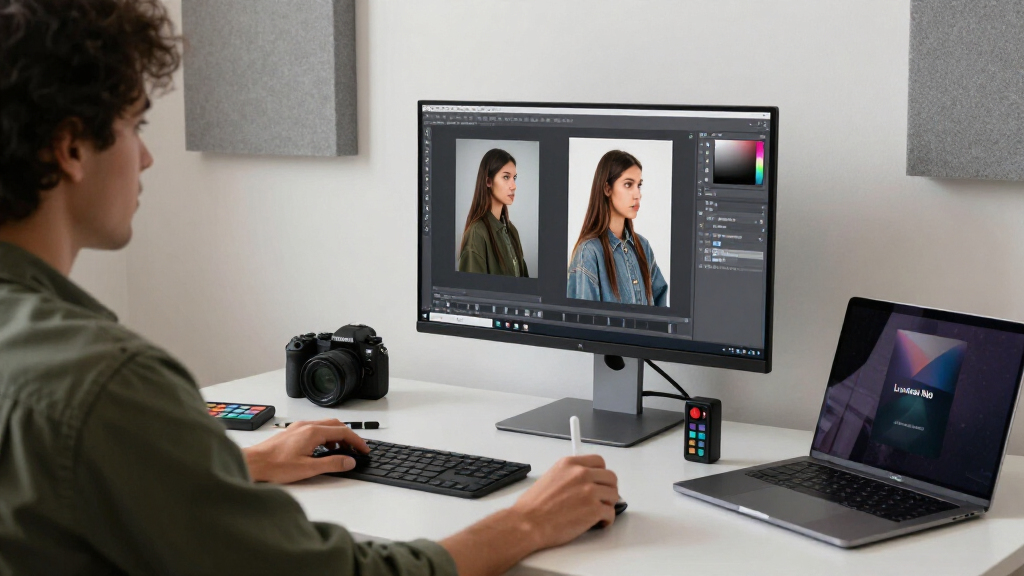
Luminar Neo is an AI-first photo editor built for fast photographic enhancements, while Photoshop is a layer-based pixel editor for precise retouching, compositing, design, and production. Choose Luminar Neo when speed and approachable controls matter; choose Photoshop when the file must be exact, complex, reusable, or delivered with editable layers.
The best editor is the one that matches the mess on your screen. A flat travel RAW file with a pale sky may need five focused minutes in Luminar Neo, while a product photograph with dust, warped labels, replacement packaging, and client revisions may need two careful hours in Photoshop. Calling one application better misses the useful question: what job are you asking it to do?
I have learned this distinction through ordinary shooting work, where deadlines rarely care which software feels more impressive. When I return with 300 event photographs, I want fast tonal balance, consistent color, and clean faces; when a client circles a reflection on a chrome bottle at 200% magnification, I want layers, masks, paths, and patient control. One workflow feels like tuning a finished instrument, while the other feels like opening the instrument on a workbench.
This guide shows you where Luminar Neo and Adobe Photoshop overlap, but they are designed for different jobs. You will see how they compare for learning, AI edits, portraits, compositing, RAW files, batch work, printing, and professional delivery. More useful still, you will learn when using both creates a faster, cleaner workflow than forcing either application to handle every task.
Choose Luminar Neo for fast exposure, color, portrait, sky, atmosphere, and lighting improvements when the deliverable is a finished photograph.
Choose Photoshop for exact masks, natural high-end retouching, multi-image composites, typography, print production, and editable client files.
Inspect every AI edit at 100% around hands, hair, reflections, text, architecture, and repeating patterns.
Keep original RAW files, backed-up catalogs, and editable masters because neither application replaces a sound backup workflow.
Use Luminar Neo for the broad photographic look and Photoshop for precision work when one application alone makes the job slower.
Luminar Neo vs Photoshop: Different Tools, Different Jobs
Luminar Neo is an AI-first editor for fast photographic polish. Photoshop is a layer-based pixel workbench for exact retouching, compositing, design, and production. The useful question is not which is better—it is which workflow matches the mess on your screen.
Choose the faster route for the actual job
Luminar Neo reduces technical decisions and moves quickly toward a finished photograph. Photoshop asks for more construction up front, but its editable structure makes exact changes and later revisions far easier.
| Editing need | Luminar Neo | Photoshop |
|---|---|---|
| Quick photo enhancement | ✓Strong fit: guided sliders, presets, and automatic masks | ~Highly capable, with more setup and technical decisions |
| Detailed portrait retouching | ~Fast skin, face, eye, and lighting improvements | ✓Precise texture, color, healing, and dodge-and-burn layers |
| Complex compositing | ✗Basic layers and photographic overlays only | ✓Selections, smart objects, blend modes, and deep layer control |
| Text and graphic layouts | ✗Limited because photography remains the focus | ✓Typography, vector shapes, mockups, and multi-asset designs |
| RAW workflow | ✓Built-in development with a catalog-oriented library | ~Adobe Camera Raw, often paired with Lightroom or Bridge |
| Editable client delivery | ✗Best suited to exported finished photographs | ✓Layered PSD or PSB masters support detailed revisions |
Outcome-first versus control-assisted
Both editors use AI. Luminar Neo makes AI the center of the photographic experience; Photoshop combines automation with traditional selections, masks, layers, and manual pixel work.
Reach a convincing look quickly
Photographic goals appear as approachable controls. Brighten a face, replace a pale sky, relight depth, remove distractions, or add atmosphere without first building the technical mechanism.
Automate the step, keep the workbench
AI accelerates selections, removal, expansion, and generated content while leaving access to masks, smart objects, channels, brushes, transforms, and independent revision layers.
Inspect important AI edits at 100% magnification
Look closely around hands, hair, reflections, lettering, architecture, and repeating patterns. Automatic edits can be persuasive at screen-fit size while hiding broken edges and invented detail.
Broad photographic look, then precision repair
Using both can be faster than forcing either application to do everything. Let Luminar Neo establish light, color, and atmosphere; send only the images requiring exact construction into Photoshop.
Protect originals
Keep RAW files, backups, and a clean starting point.
Shape the look
Balance exposure, color, sky, faces, and atmosphere in Neo.
Inspect edges
Check masks, hair, text, reflections, and repeated detail.
Repair precisely
Use Photoshop for compositing, cleanup, paths, and local retouching.
Deliver correctly
Export a finished image or preserve a layered PSD master.
Neo gets the listing ready
Lift the shadowed porch, warm the windows, soften a harsh sky, straighten the mood, and add gentle contrast before the coffee cools.
Photoshop rebuilds the scene
Remove a parked van, reconstruct the fence behind it, correct every vertical, place branded typography, and keep each decision independently editable.
One tunes the image. One opens the workbench.
These relative scales summarize workflow emphasis, not laboratory performance. A practiced editor can work quickly in either application; the difference is how much structure and technical control the task requires.
The deliverable spectrum
Move toward Photoshop as the job accumulates exact masks, typography, source layers, multi-image construction, print requirements, and client revisions.
Trace the job from capture to delivery
The workflow should follow the image’s needs—not the prestige, complexity, or feature count of the application.
Five rules worth keeping
Choose Luminar Neo for rapid exposure, color, portrait, sky, atmosphere, and lighting improvements when the deliverable is a finished photograph.
Choose Photoshop for exact masks, natural high-end retouching, multi-image composites, typography, print production, and editable client files.
Inspect every AI edit around hands, hair, reflections, text, architecture, and repeated patterns before delivery.
Protect the source material. Keep original RAW files, backed-up catalogs, and editable masters; neither editor replaces a sound backup workflow.
Use both when useful. Build the broad photographic look in Luminar Neo, then move to Photoshop when precision work would otherwise slow the job down.
Choose the Faster Route by Matching the Editor to the Deliverable
Luminar Neo vs Photoshop comes down to speed versus control: Luminar Neo quickly shapes a photograph through guided AI adjustments, while Photoshop lets you construct and revise an image at the pixel, layer, and mask level. Your final deliverable, not the longest feature list, should decide which editor you open.
| Editing need | Luminar Neo | Photoshop |
|---|---|---|
| Quick photo enhancement | Strong fit: guided sliders, presets, and automatic masks | Capable, though the workflow may require more setup |
| Detailed portrait retouching | Fast skin, face, eye, and lighting adjustments | Stronger control: texture, color, healing, and dodge-and-burn layers |
| Complex compositing | Basic layers and photographic overlays | Clear choice: selections, smart objects, blend modes, and extensive layer management |
| Text and graphic layouts | Limited because photography remains the focus | Purpose-built tools for typography, shapes, mockups, and multi-asset designs |
| RAW workflow | Built-in development with a catalog-oriented library | Adobe Camera Raw, often paired with Lightroom or Bridge |
| Editable client delivery | Best for exported finished photographs | Layered PSD or PSB files support detailed revisions |
Suppose you photograph a cottage at sunset for a rental listing. Luminar Neo can lift the shadowed porch, warm the windows, soften a harsh sky, and add gentle contrast with depth-aware controls; the result may be ready before your coffee cools. If the client then asks you to remove a parked van, rebuild the fence behind it, straighten every vertical, and add branded text, Photoshop becomes the better workbench.
I define speed here as reaching a convincing result with fewer technical decisions, not as a stopwatch contest. Luminar Neo is built for fast visual progress, but AI calculations can still take time on a large RAW file. Photoshop asks for more decisions up front, yet a well-built document can make the third revision much faster because every major change remains on its own layer.
Choose by the file you must hand over: a polished photograph favors Luminar Neo; an editable image system favors Photoshop.
Luminar Neo photo editing software
As an affiliate, we earn on qualifying purchases.
As an affiliate, we earn on qualifying purchases.
Get Comfortable Faster Without Giving Up Room to Grow
Luminar Neo vs Photoshop is an uneven learning contest because Luminar Neo presents photographic goals, while Photoshop presents editing mechanisms. If this is your first photo editor, controls such as Enhance AI, Relight AI, Sky AI, and portrait adjustments give you visible feedback without requiring an early command of channels or blending modes.
Imagine editing a backlit portrait from a windy afternoon on the coast. In Luminar Neo, you can brighten the face, lower the bright sky, add a little eye detail, and mask the subject with a few guided controls. The screen feels like a photographer’s checklist: light, color, skin, background, atmosphere.
Photoshop starts with a larger vocabulary. You need to learn what layers contain, how masks hide or reveal pixels, why brush hardness changes an edge, and when a smart object protects the original data. It resembles learning a professional kitchen: the first meal takes longer because you must discover where every knife lives, but those tools later let you prepare almost anything.
The tradeoff appears when an automatic result misses. If Luminar Neo’s mask catches a bright wall along with a white shirt, you can refine the mask, though the correction options remain streamlined. Photoshop gives you Select and Mask, object selection, paths, channels, brush refinement, and manual pixel work, so a difficult veil or flyaway hair has several possible solutions.
- Choose Luminar Neo when you want to understand light and color before studying complex editing mechanics.
- Choose Photoshop when you enjoy learning systems and expect your work to expand into design, compositing, or exact retouching.
- Start with one repeatable task, such as cleaning portraits, instead of trying to learn every panel in a weekend.
A beginner does not lose artistic seriousness by choosing simpler controls. Simplicity can create organized freedom: fewer buttons leave more attention for expression, color, and timing. The danger comes from pushing every slider until the photograph becomes shiny, brittle, and louder than the moment you captured.
Adobe Photoshop professional photo editor
As an affiliate, we earn on qualifying purchases.
As an affiliate, we earn on qualifying purchases.
Know When a Quick Portrait Needs a Precision Retouch
Luminar Neo vs Photoshop separates quick portrait polishing from detailed professional retouching. Luminar Neo can soften skin, brighten a face, improve eyes, and reshape lighting in minutes; Photoshop gives you independent control over texture, tone, color, edges, and every repair when natural detail must survive close inspection.
For a family portrait session, Luminar Neo can handle the work gracefully. You might reduce a temporary red patch, soften deep under-eye shadows, and add a small amount of face light across 40 selected photographs. Used gently, those tools help the people look rested without turning their skin into smooth plastic.
A beauty campaign asks for another level of care. Photoshop supports precise healing, frequency separation, channel-based selections, custom brushes, and layered dodge and burn, so you can reduce a crease while keeping pores and fine hairs intact. I often think of this process as restoring a charcoal drawing: lift one mark too aggressively and you erase the paper’s character along with the flaw.
The same difference appears in object removal. Luminar Neo is convenient when a small rubbish bin sits at the edge of a landscape or a sensor spot floats in a clean sky. Photoshop becomes safer when the unwanted object crosses hair, patterned fabric, reflections, lettering, or repeating architecture, because you can combine automatic removal with cloning, healing, selections, and hand-painted reconstruction.
Inspect AI-assisted portraits at 100% magnification. Check eyelashes, teeth, hairlines, earrings, fingers, clothing edges, and reflections before you export a client file.
A fast edit should still respect the person. Keep the original RAW file, work on a duplicate or non-destructive layer, and ask whether you are correcting a brief distraction or changing someone’s identity. The strongest portrait retouch often feels like a quietly dramatic improvement: the face holds your attention, yet the editing leaves no fingerprints.
![Corel AfterShot Pro 3 | RAW Photo Editing Software [PC/Mac Key Card]](https://m.media-amazon.com/images/I/51cHkSe5ByL._SL500_.jpg)
Corel AfterShot Pro 3 | RAW Photo Editing Software [PC/Mac Key Card]
- Non-destructive editing: Edit RAW photos without quality loss
- Easy photo management: View, store, and organize photos easily
- Batch processing: Edit multiple photos quickly with presets
As an affiliate, we earn on qualifying purchases.
As an affiliate, we earn on qualifying purchases.
Use AI for the Heavy Lifting, Then Check the Fragile Edges
Luminar Neo vs Photoshop shows two distinct ways to use AI: Luminar Neo organizes AI around immediate photographic outcomes, while Photoshop places generative and selection tools inside a broader manual editing system. Both can save substantial time, but neither can judge truth, taste, or client rules for you.
Luminar Neo’s AI tools can detect subjects, skies, faces, water, buildings, vegetation, and scene depth. That makes local lighting feel less like cutting a stencil by hand and more like asking an assistant to hold a reflector in the right place. According to Skylum’s product documentation, its tools cover automated masking, relighting, sky work, portrait enhancement, and generative changes [2].
Photoshop combines Select Subject, object selection, sky replacement, the Remove Tool, neural features, Generative Fill, and Generative Expand with layers and masks. According to Adobe’s documentation, generated additions can live on separate layers, which lets you revise or remove them without permanently covering the captured pixels [1]. That structure matters when a client asks for three background versions after approving the first.
Consider a wedding photograph where a guest’s hand overlaps a patterned chair. An automatic removal may invent a convincing sleeve but produce a twisted finger, melted wood grain, or repeating fabric. At normal screen size the error whispers; in a large album print, it shouts.
- Run the automated edit on a copy, layer, or retained catalog version.
- Zoom to 100% and inspect hands, hair, reflections, text, architecture, and repeated patterns.
- Compare against the original so invented content does not quietly alter an important fact.
- Repair weak areas manually or reject the generated result when the structure looks wrong.
- Disclose major manipulation when journalism, competitions, documentary work, or client policy requires it.
Modern editing now extends beyond correcting captured light; it can invent scenery that never reached the sensor. Preserve original files and follow the rules attached to the photograph’s use. AI offers controlled unpredictability, which can be playful in personal art and unacceptable in a news image.
As an affiliate, we earn on qualifying purchases.
Protect Your RAW Files and Keep Future Revisions Possible
Luminar Neo and Photoshop both support non-destructive work, but they store editing decisions differently. Luminar Neo keeps photographic adjustments through its catalog and editing system, while Photoshop relies on layers, masks, smart objects, smart filters, and editable PSD or PSB documents when you build the file carefully.
Luminar Neo can open and develop common RAW formats, then organize photographs through a catalog-oriented workflow. For a weekend landscape trip, you can browse a folder, flag the strongest frames, apply related color treatments, and return to an earlier edit without changing the original sensor data. Camera support can vary by software version, so verify your camera model before making it the center of a new workflow.
Photoshop opens RAW files through Adobe Camera Raw. Adobe Camera Raw handles exposure, white balance, lens corrections, local masks, and other development work before the photograph enters Photoshop [1]. Many working photographers pair Photoshop with Lightroom or Bridge because Photoshop itself behaves more like a single-image workshop than a high-volume photo library.
The word non-destructive does not mean nothing can go wrong. It means your editing choices remain reversible when you use the available safeguards. Painting directly over a normal Photoshop pixel layer can still destroy information, and losing or corrupting a Luminar catalog can separate you from edit histories even when the original photographs remain safe.
On a commercial food shoot, I may place the RAW file as a smart object, add separate curves for the plate and background, mask a color adjustment onto the garnish, and keep cleanup on blank layers. When the art director asks for a cooler marble surface but warmer bread, I can change each part without rebuilding the image. That is revision-ready editing, not merely non-destructive editing.
- Keep original RAW files in a backed-up folder outside any single application catalog.
- Use layers, masks, and smart objects for Photoshop work that may receive revisions.
- Back up Luminar Neo catalogs along with the original image folders they reference.
- Export finished JPEG or TIFF files, but do not treat exports as substitutes for editable masters.
Combine Both Editors Without Creating a File-Management Tangle
Using Luminar Neo and Photoshop together works best when each application receives a clearly defined job. Build the broad photographic look in Luminar Neo, then move into Photoshop for precise cleanup, detailed retouching, typography, compositing, or layered delivery. Keep the RAW original and an editable master so the handoff stays reversible.
- Back up and select the RAW files. Choose the frame for expression, timing, and focus before spending time on polish.
- Develop the photographic look. Set exposure, color, atmosphere, and broad local lighting in Luminar Neo, keeping automated portrait and sky effects restrained.
- Export a high-quality working file. Use a format and bit depth suited to later editing rather than a small, heavily compressed social-media JPEG.
- Finish the precision work in Photoshop. Clean difficult edges, rebuild complex areas, manage text, and place each revision-prone change on its own layer.
- Save an editable master and delivery copies. Keep the layered file, then create correctly sized exports for print, web, or the client portal.
Here is a common architecture workflow. Luminar Neo can open the RAW file, balance the room, recover the windows, and add gentle warmth to wooden furniture. Photoshop can then blend a darker window exposure, straighten awkward lines, remove a cable crossing patterned wallpaper, and prepare separate web and print files.
You can also reverse the order for a specific problem, though repeated round trips increase the chance of duplicate files and baked-in adjustments. Name versions plainly, such as kitchen-hero-raw, kitchen-hero-look, and kitchen-hero-master. A tidy folder may feel uncreative, but it saves you from opening six nearly identical files while a client waits on the phone.
Depending on the installed versions and host software, Luminar Neo may also work as a plugin alongside Adobe applications. Check current compatibility for your operating system before building a deadline-sensitive workflow around that connection. Plugin support, generative services, cloud access, and usage limits can change separately from the desktop editor.
One editor does not need to win. The practical victory is a file that reaches the right finish with fewer mistakes and remains easy to revise.
Pick Photoshop When the Image Must Join a Larger Production
Photoshop is the stronger choice when a photograph must become part of a designed, printed, automated, or collaboratively edited production. Its value grows beyond retouching through typography, vector shapes, color controls, actions, scripts, plugins, smart objects, and connections with other Adobe applications.
A social-media portrait offers a simple example. Luminar Neo can make the face, color, and background look polished very quickly. If the final post needs a logo, a sponsor lockup, two text styles, a product cutout, and four platform-specific crops, Photoshop handles the expanding layout more naturally.
The gap grows in professional printing. Photoshop offers mature profile handling, soft proofing, high-bit-depth editing, and production options used by studios, agencies, designers, and printers. Luminar Neo can produce attractive photographic prints, but it is not intended to replace a production editor for CMYK preparation, separations, or exact prepress work.
Automation also changes the calculation. A Photoshop action can resize files, sharpen for a delivery size, apply a repeatable layer structure, and save copies, while scripts and batch tools can handle more specialized routines. Luminar Neo makes consistent photographic styling approachable, though processing-heavy AI adjustments may slow a large batch of high-resolution files.
Neither application gets a free pass on hardware. Luminar Neo’s friendly sliders can hide demanding AI calculations, and Photoshop can consume substantial memory when a document contains many smart objects, generative layers, and high-resolution sources. A 45-megapixel RAW file with a few corrections is very different from a multi-gigabyte composite, so performance claims without file and hardware details tell you little.
Before choosing, map the people who touch the file after you. If a designer expects a layered PSD, a printer sends a profile, or an agency requests editable masks, Photoshop fits the production chain. If everyone needs only a polished JPEG or TIFF, Luminar Neo may be the cleaner, faster route.
Frequently Asked Questions
Can Luminar Neo replace Photoshop for photography?
Luminar Neo can replace Photoshop for many photographers whose work centers on RAW development, color, landscapes, portraits, travel photographs, and quick local adjustments. It cannot fully replace Photoshop when you need complex compositing, exact retouching, typography, illustration, prepress work, or layered client deliverables.
Which editor is easier for a beginner?
Luminar Neo is usually easier because its controls describe visible photographic goals such as relighting, portrait improvement, sky editing, and atmosphere. Photoshop takes longer to learn because you must understand layers, masks, selections, brushes, channels, and blending, but that knowledge gives you more ways to solve difficult edits.
Which produces better image quality?
Neither editor automatically produces better image quality. The result depends on the RAW file, your decisions, the strength of the adjustments, color management, and export settings. Photoshop offers finer control over difficult details, while Luminar Neo can reach an excellent photographic finish with fewer steps.
Which is better for portraits?
Luminar Neo is faster for routine portrait improvements such as face lighting, eye enhancement, and gentle skin smoothing across several photographs. Photoshop is stronger for high-end natural retouching where you need to preserve pores, correct uneven color, repair individual hairs, or control every tonal change.
Which is better for landscape photography?
Luminar Neo suits quick landscape enhancement through sky, atmosphere, relighting, color, and AI masking tools. Photoshop fits landscapes that require precise exposure blending, focus stacking, difficult object removal, or finely refined masks, such as tree branches crossing a bright horizon.
Can both applications edit RAW files non-destructively?
Both can preserve RAW originals when you use their non-destructive features correctly. Luminar Neo retains catalog-based adjustments, while Photoshop uses Adobe Camera Raw and can preserve flexibility through smart objects, adjustment layers, masks, and smart filters; direct edits to a normal pixel layer can still remove original information.
Should a photographer use Luminar Neo and Photoshop together?
Using both makes sense when Luminar Neo saves time on the initial photographic look and Photoshop handles detailed cleanup, compositing, text, or delivery layers. For example, you can relight a travel portrait in Luminar Neo, then use Photoshop to repair flyaway hair against a patterned wall and prepare a branded campaign crop.
Conclusion
Choose the job before you choose the editor. If your photograph needs a fast, polished lift, open Luminar Neo and keep the adjustments measured. If it needs exact reconstruction, complex layers, text, specialized color work, or an editable production file, open Photoshop and build the document so every important choice can be revised.
You do not earn better photographs by using the application with the longest menu. You earn them by noticing the pale rim around a mask, the skin texture that disappeared, or the shadow that should stay dark. Let your software handle the heavy labor, then bring your judgment, restraint, and careful eyes to the final frame—the quiet moment when a busy screen becomes a photograph worth keeping.
Pool season Picks
robotic pool cleaners
As an affiliate, we earn on qualifying purchases.
![The GNU Emacs Architecture: Unlocking The Core [Pdf]](https://photomocha.com/wp-content/uploads/2026/07/the-gnu-emacs-architecture-unlocking-the-core-pdf-featured-560x300.jpg)